

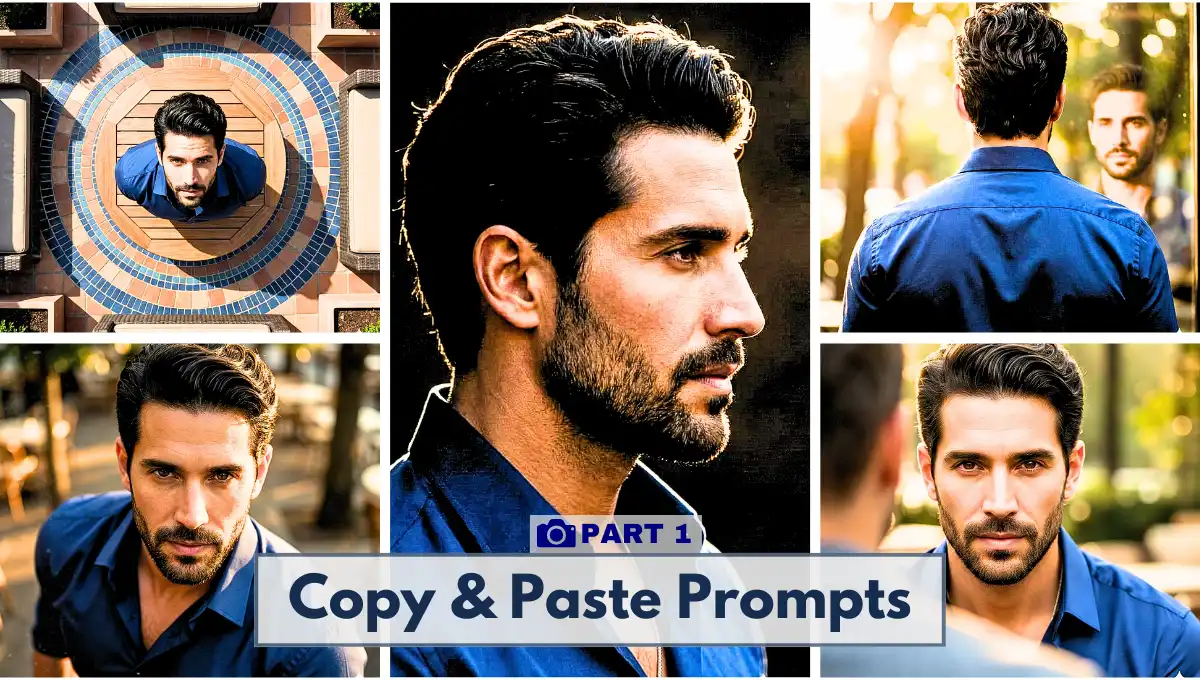
AI indeed has made content creation easy, especially making whatever you imagine. But, if you can’t explain or name a particular angle or effect, it becomes very hard to achieve the desired results.
Today I have brought you 8 most used camera angles which might seem easy to generate, but cannot be as perfect when entered the correct camera angle name.
This will be part one of camera angle series as there are actually hundreds of camera angles which are used commercially, and to gain extra attention.
Following prompts aren’t lengthy at all. At straightly conveys what’s required, and that’s it. Yet, you can customize the prompts if want slightly different results. Plus, as I always say, if didn’t get the result at first attempt, just try again.
Key Takeaways:
- We will be using Nano Banana Pro via Gemini, but you can prefer ChatGPT 5.2, or Seadream 4.0 too as they are just camera angle prompt, and no specific image generation model is conditional.
- For best results, a base image where the character is facing the camera, his/her overall face is visible, and at least medium close up will be required.
- Copy and paste, or modify the following prompts according to your need.
Prompts With Outputs:
● How to Create The Trending 3D Figurine Mockup Using Nano Bana? Step by Step Tutorial
1. High Angle Shot From Above

Copy Prompt: “high angle shot from above, looking down at the subject, cinematic lighting“
2. Bird’s Eye View
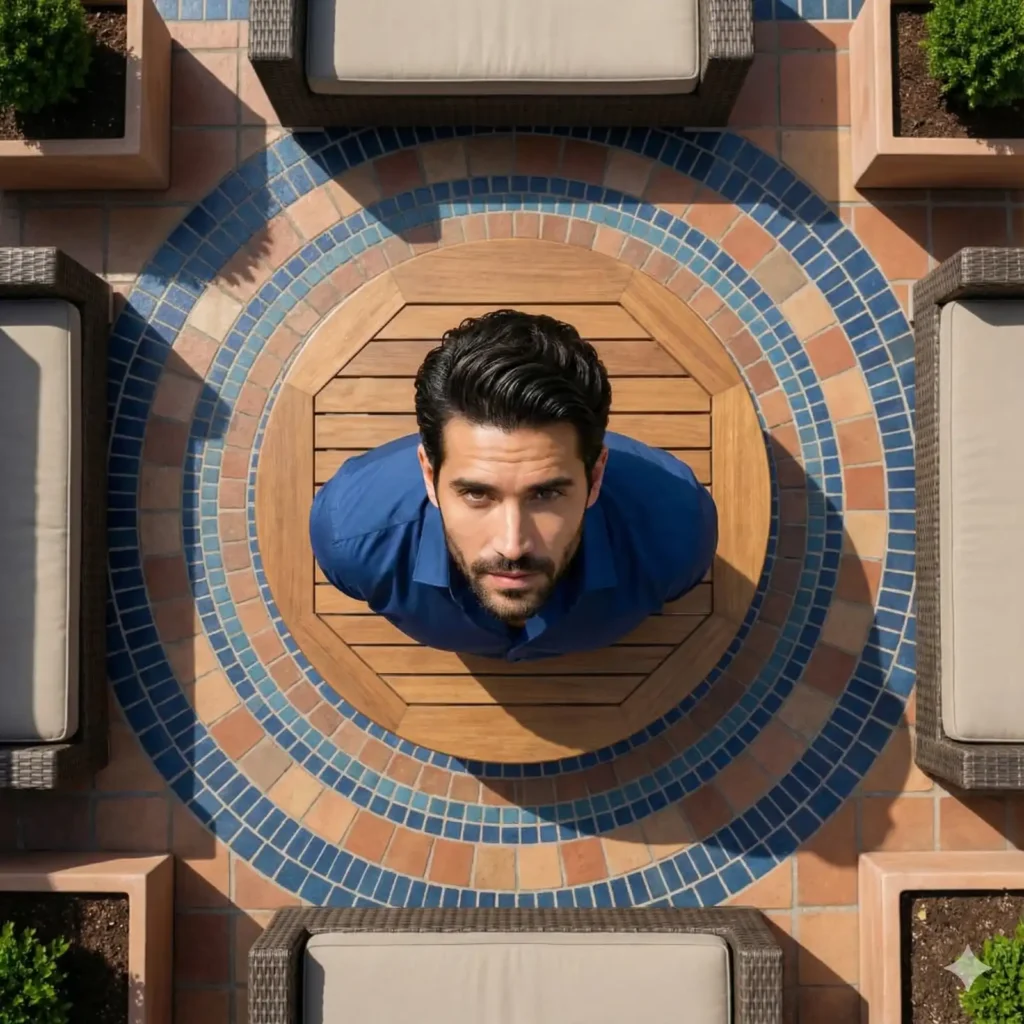
Copy Prompt: “bird’s-eye view, camera directly above the subject, geometric composition, keep the face identical”
● How to Make Capsule-Style Ads using AI? Step by Step Tutorial
3. Left Profile Shot
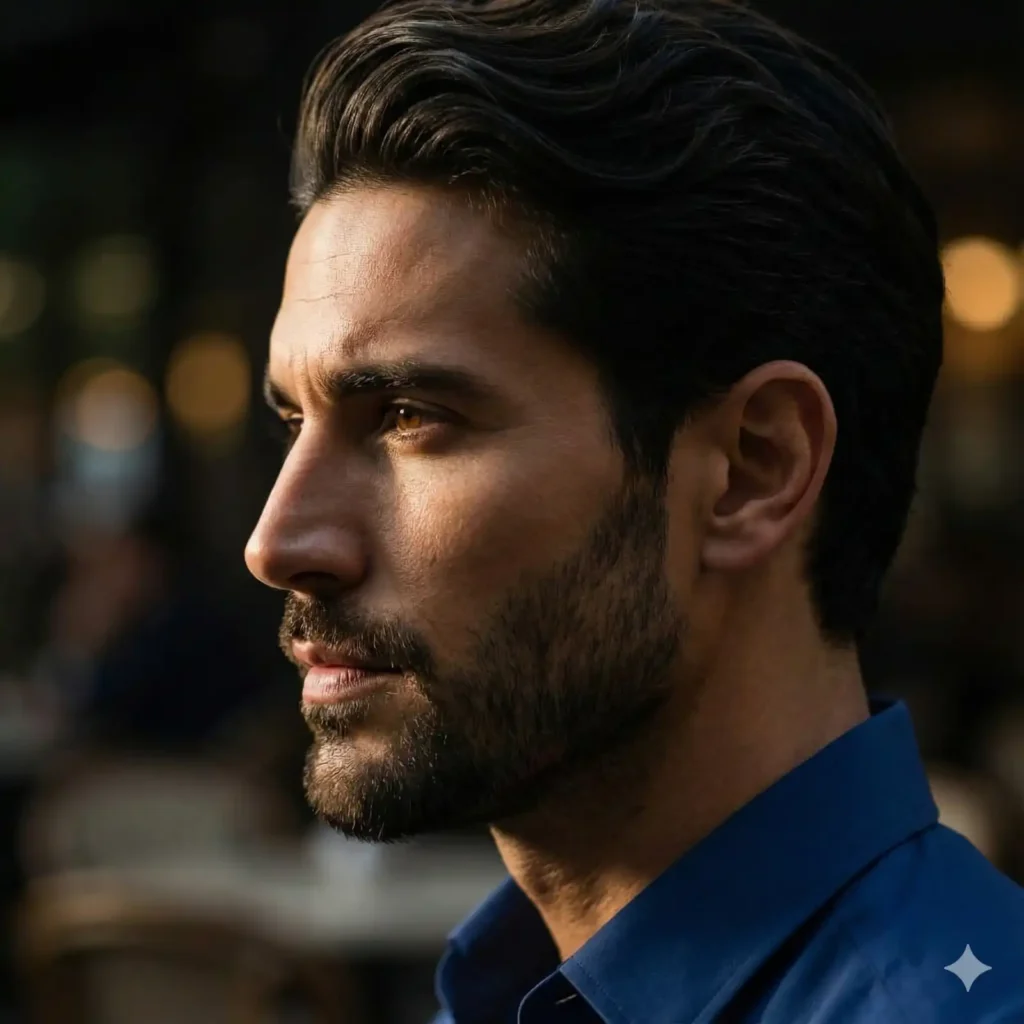
Copy Prompt: “left profile shot, sharp facial outline, cinematic contrast, keep the face identical“
4. Right Profile Shot
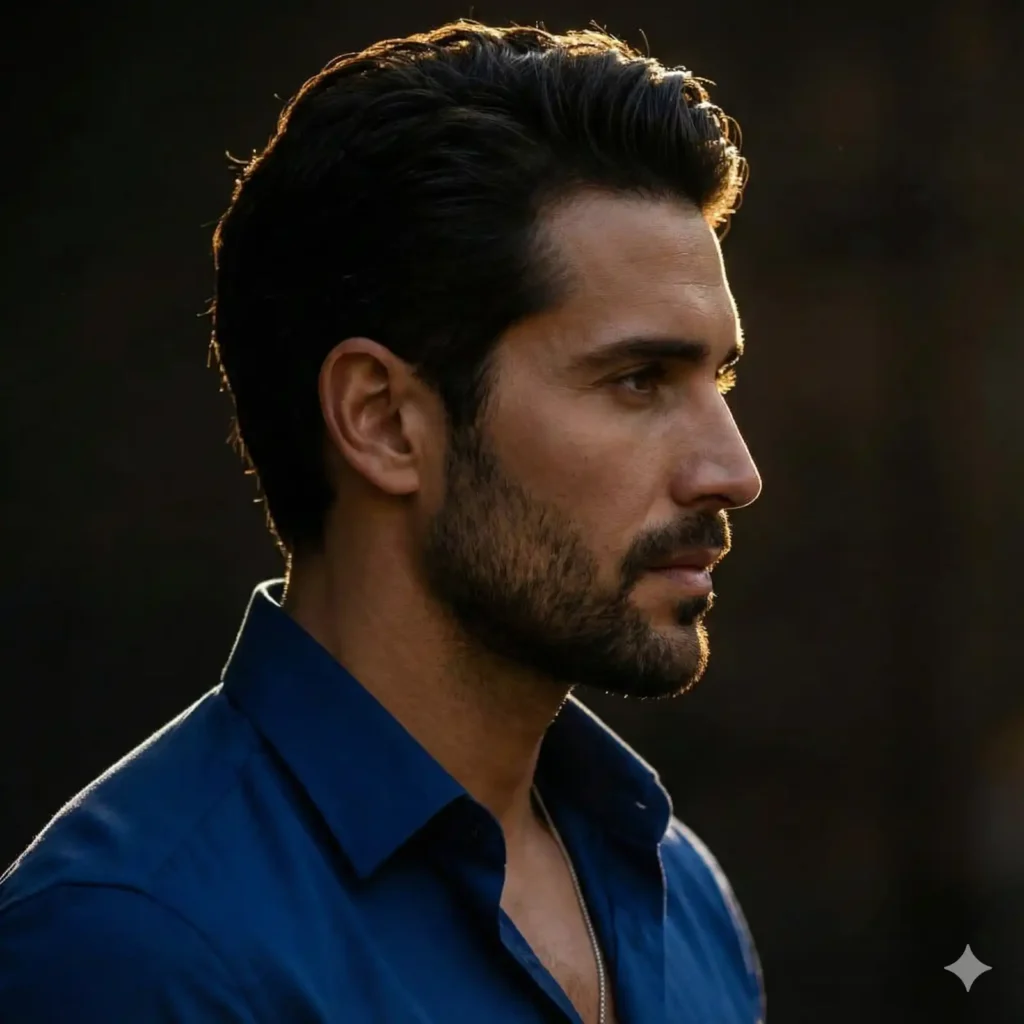
Copy Prompt: “left profile shot, sharp facial outline, cinematic contrast, keep the face identical”
5. Rear View Shot
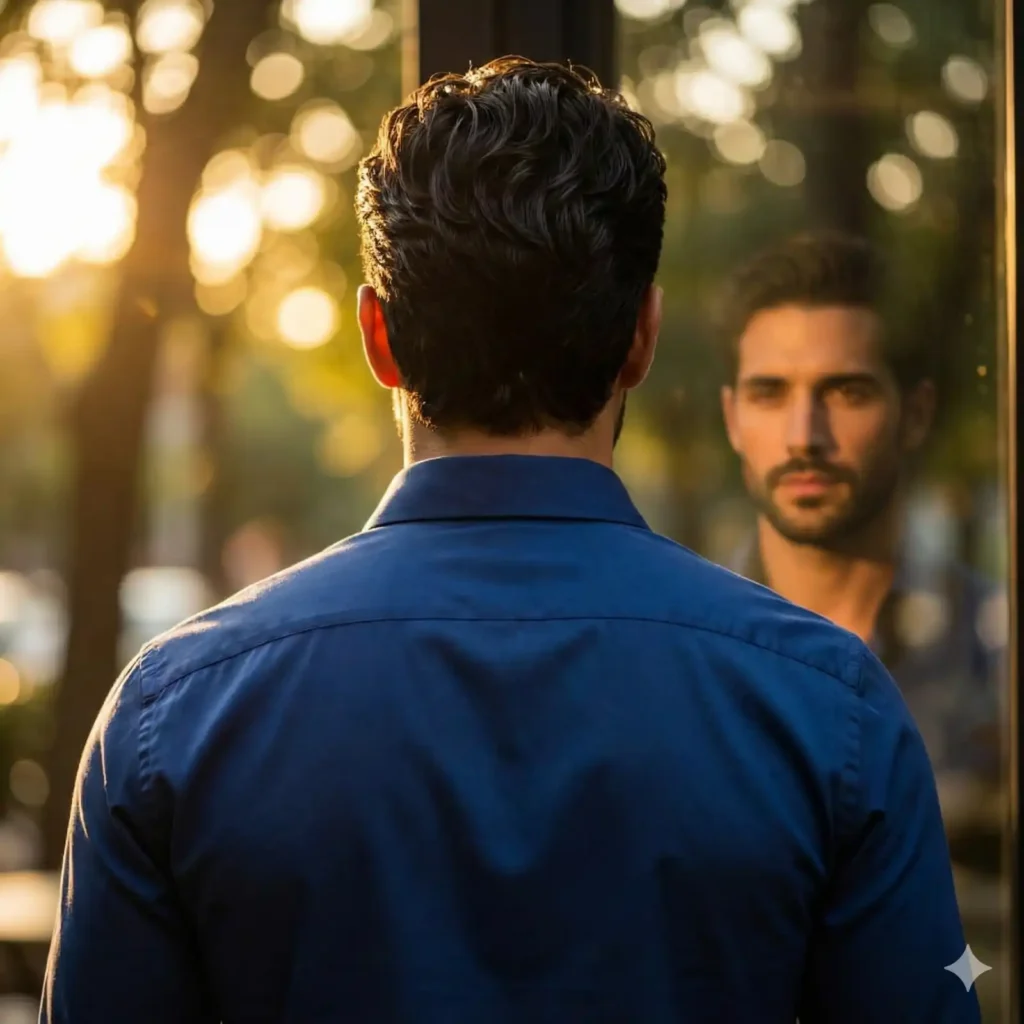
Copy Prompt: “rear view shot, subject facing away, dramatic lighting, keep the face identical“
6. Extreme Close Up of Eyes
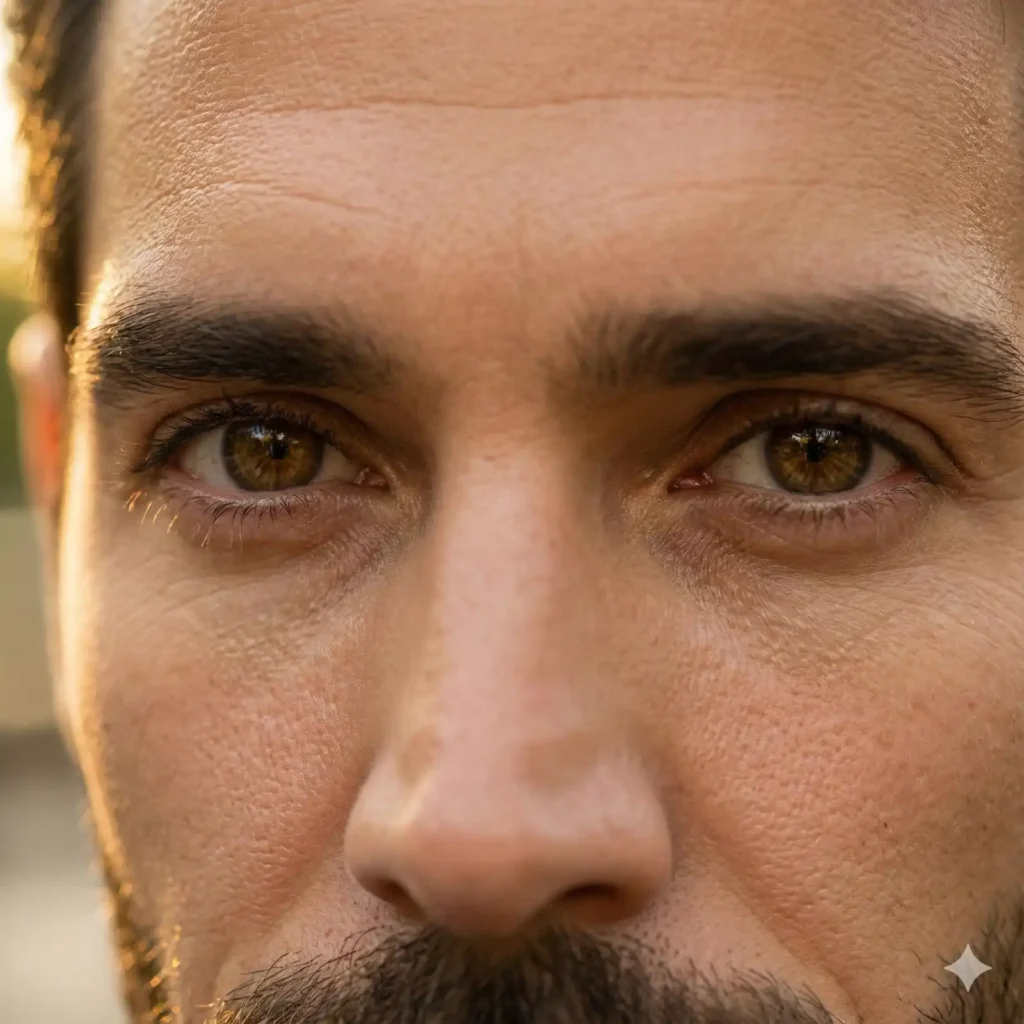
Copy Prompt: “extreme close-up of eyes, visible pores, cinematic sharpness, keep the face and camera angle identical“
● How to Make Trending Selfie with Giant Marvel Heroes? Step by Step Tutorial
7. Over-the-Shoulder Shot
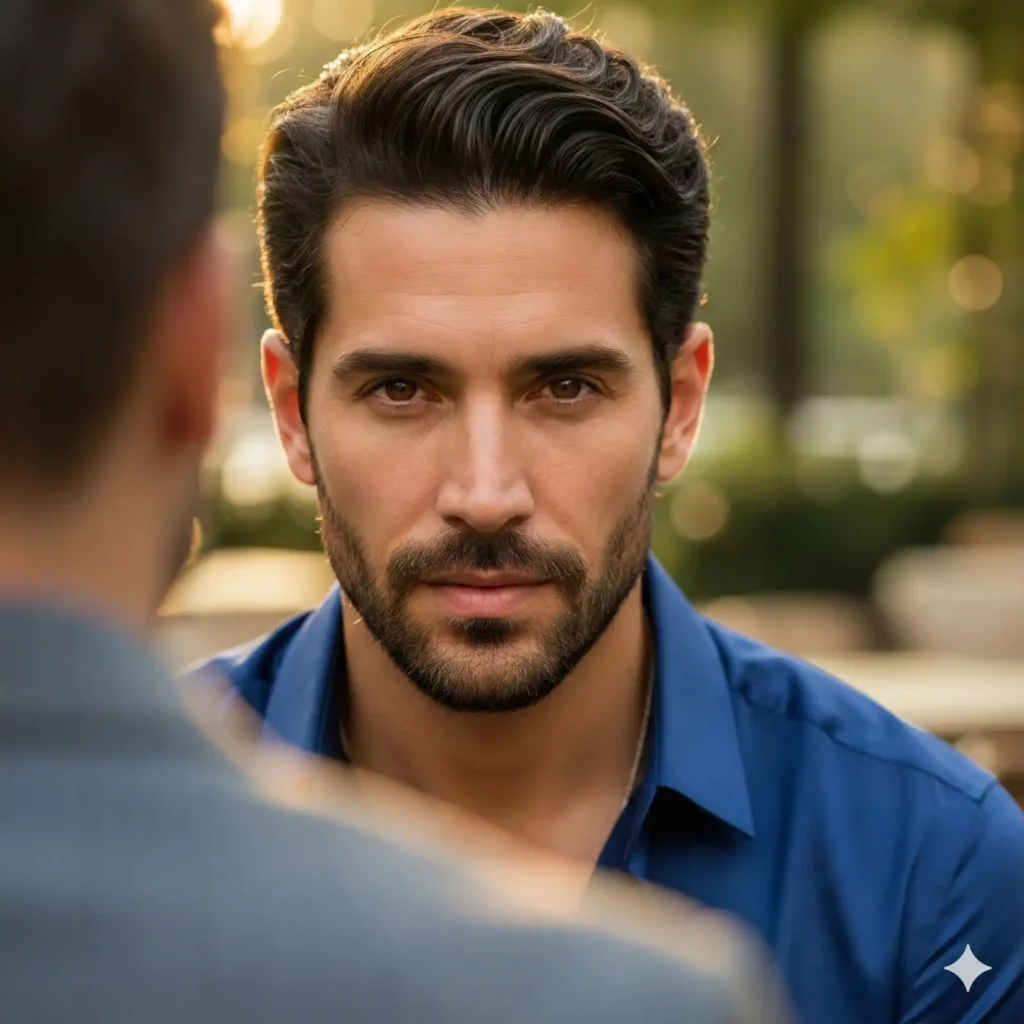
Copy Prompt: “over-the-shoulder shot, foreground blur, cinematic focus, keep the face identical“
8. Dolly-out Shot

Copy Prompt: “dolly-out shot, revealing environment, keep the face identical“
9. First Person Perspective Shot
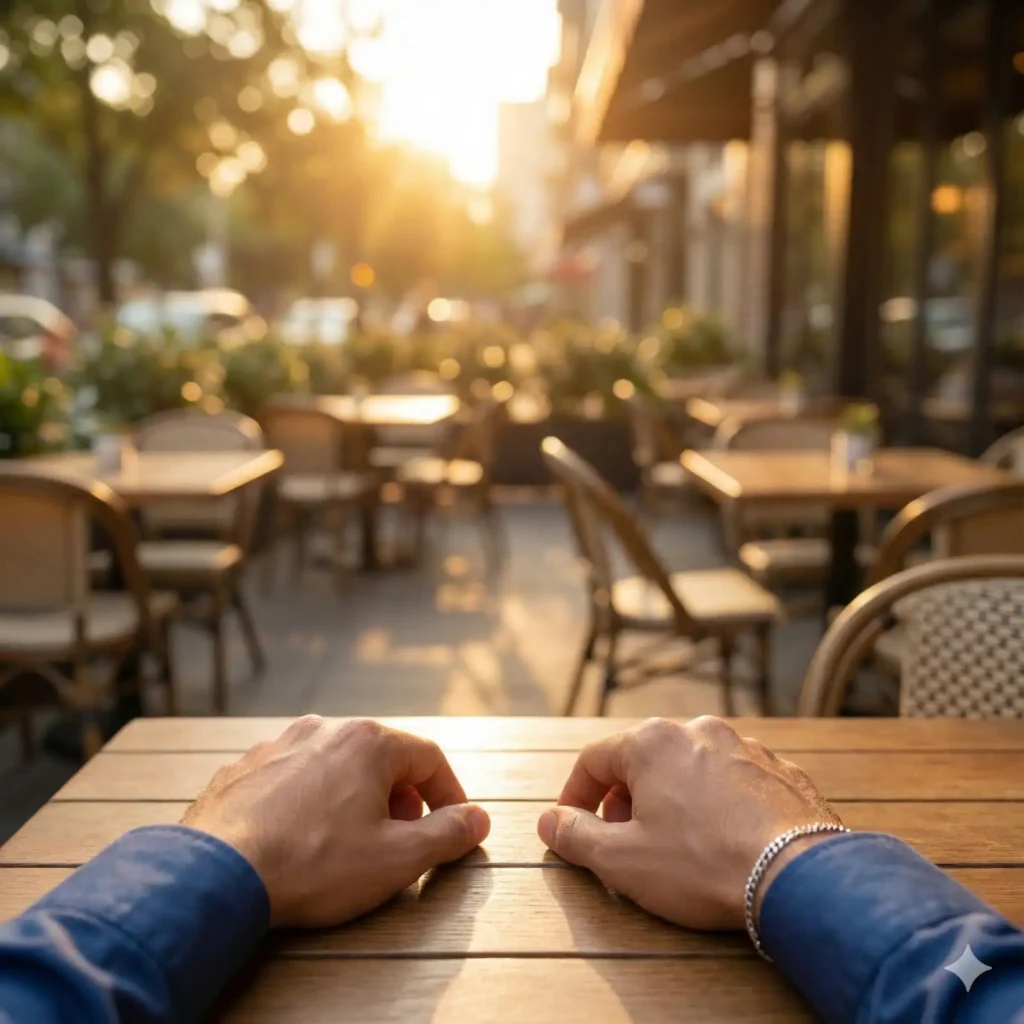
Copy Prompt: “POV shot, first-person perspective, immersive realism“
● How to Make Trending Selfie with Giant Marvel Heroes? Step by Step Tutorial
Where And How to Use?
Now, let’s see how and where to use these prompts to get accurate and desired results.
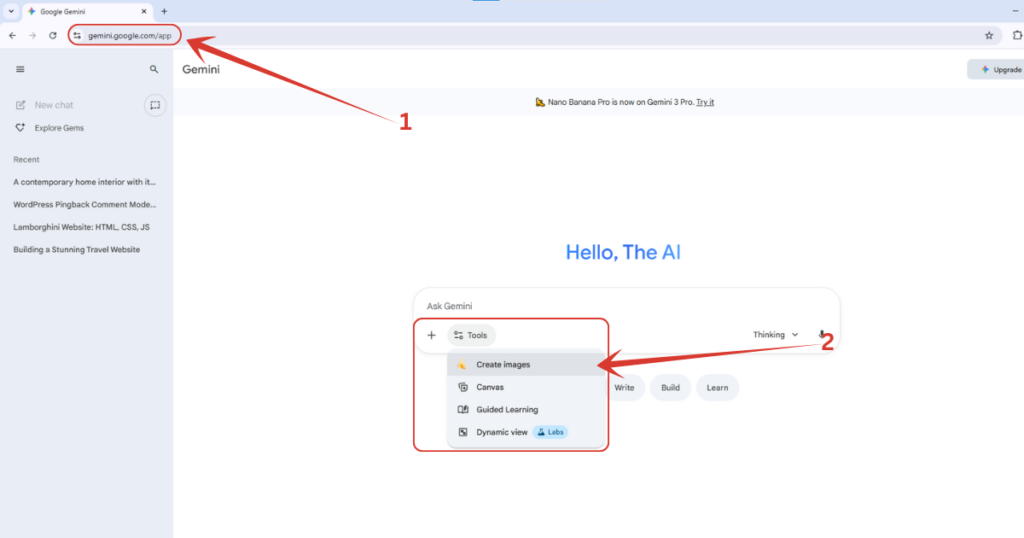
1. First, visit Gemini’s official website on https://gemini.google.com/, then click on “Tools” button down there, and select “Create images” from the dropdown list.
And, there is a good news for you guys. Google has announced Gemini Pro for 18 months, all for free. All you need to do is, read this tutorial where I have explained it step by step.
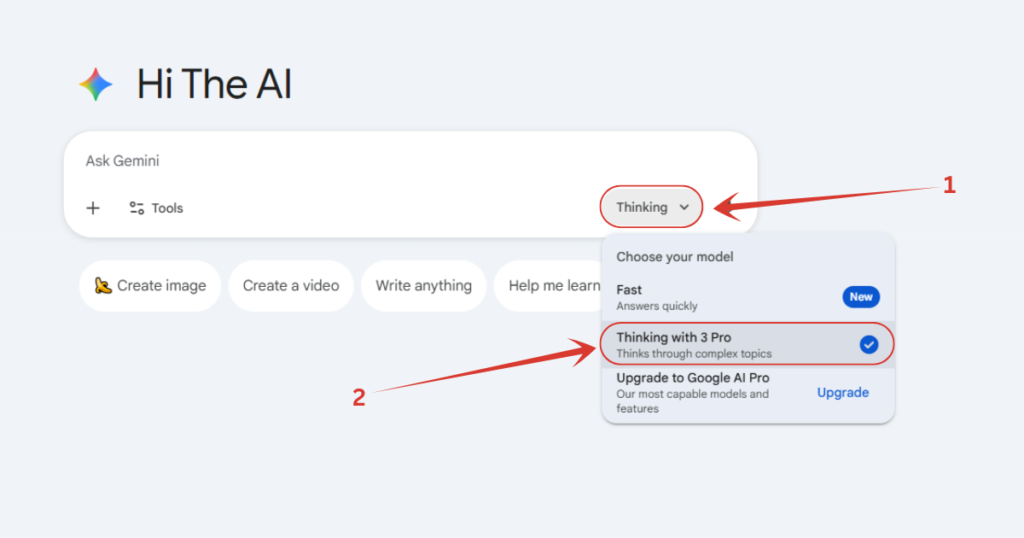
2. Make sure you have selected the Pro model of Gemini. To check whether it’s selected or not, simply click on either “Thinking” or “Fast” button down there, and if it’s set on “Fast”, switch it to “Thinking” with 3 Pro.
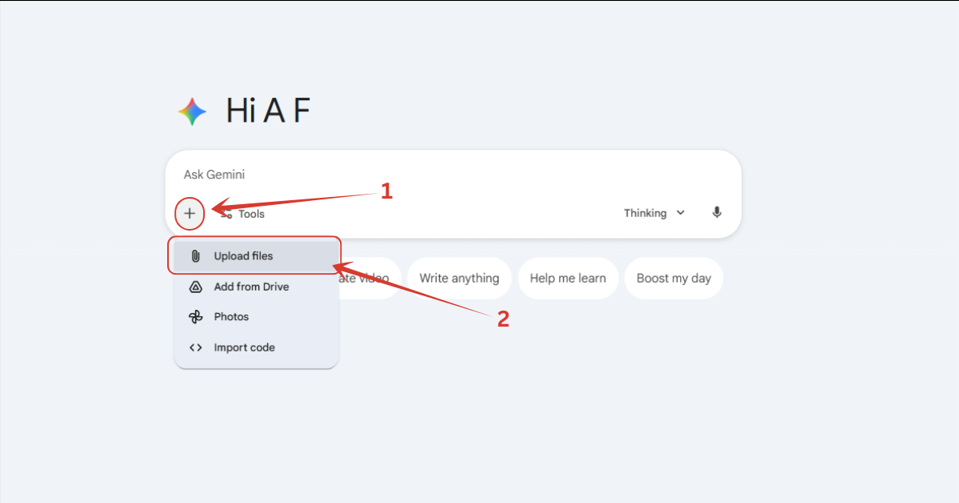
3. Now we have to upload the image of birthday boy. Click on ‘+’ button down there, and click on “Upload files” option, then a pop-up will appear from you local machine, where you have to select your image.
4. After uploading the image, pick any pro
People Also Ask:
Nope, not really. Any good AI image generating tool can be used as they are camera angle specific, not the tool or any particular generator.
A base image where the character’s at least medium close up shot and face is visible, is preferred for good results as it helps AI to read the overall environment and body accurately.
Well, that’s nature of an prompt and AI. It’s not necessary that you will get 100% similar results as shown in this tutorial but mostly similar. But if the image is too different, just try it until you get the desired results as the prompts are test before being provided here.
Conclusion
These 8 camera angles make your AI pictures look like pro movies.
Just copy the prompts, use a clear base photo with the face showing, and hit generate. If it’s not spot on, try again, AI loves a second chance! Start playing with them today.
More fun angles coming in part 2.



Leave a Reply