


Creating cute and viral ASMR-style videos might sound complicated at first, but with the right tools, it’s actually very simple.
In this guide, you’ll learn how to turn a single AI-generated image into a smooth, animated motion video using two powerful AI tools—Nano Banana Pro for image creation and Google Flow for animation.
Don’t worry if you’re a beginner. Every step is explained clearly, in order, and with visuals, so you won’t feel lost at any point.
You’ll start by generating a super cute, ultra-realistic image using a ready-made prompt, and then bring that image to life with smooth motion using Google Flow.
Just follow along step by step, and you’ll have your own ASMR-style animated video in no time.
Key Takeaways:
- We will be using two AI tools here. Nano Banana Pro to generate the image first.
- And to convert that image into an animation and motion video, will use Google Flow.
- Use the given two prompts carefully to first generate the image, and then later animate it.
- Everything is explained in depth along with proper steps and images, so you won’t stuck anywhere.
Step by Step Tutorial:
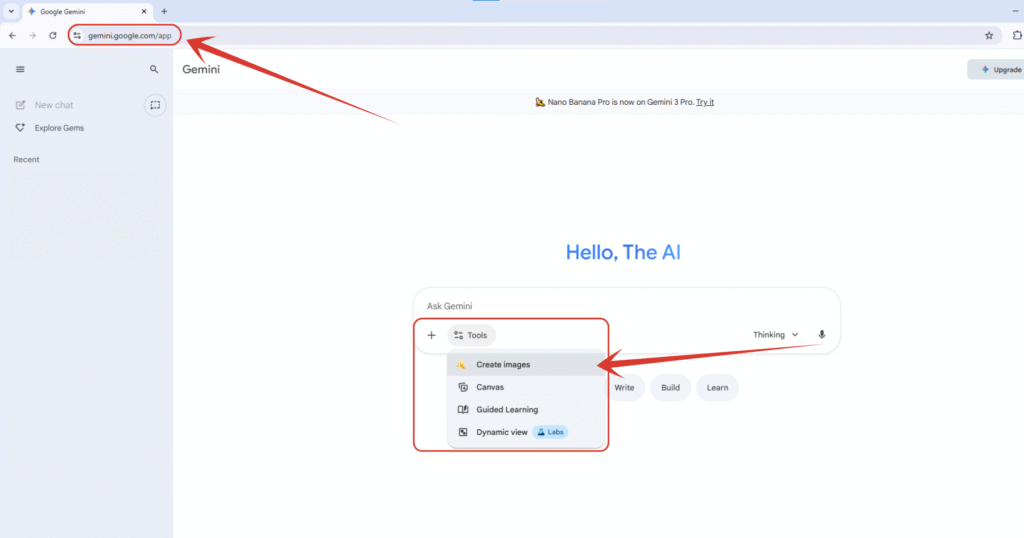
1. As we are using Nano Banana to generate the image, will first go to the official website of Gemini on https://gemini.google.com, then will click on “Tools” button down there, then will select “Create images” to start using Nano Banana Pro.
By the way, if you want to claim Gemini Pro for 18 months, all for free, read this tutorial where I have explained it step by step.
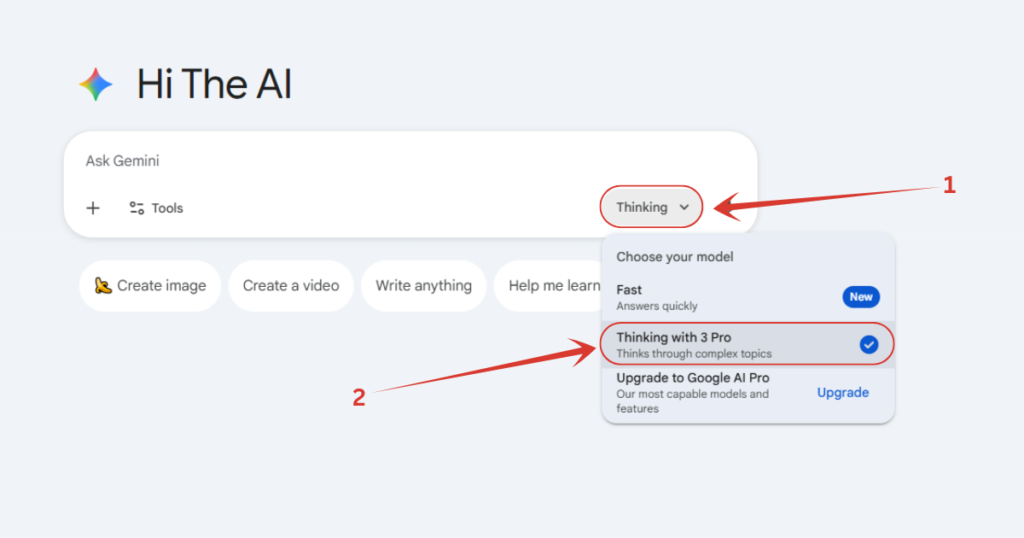
2. Make sure you have selected the Pro model. To check so, click on either “Thinking” or “Fast” button down there, and if it’s set on “Fast”, switch it to “Thinking with 3 Pro”.
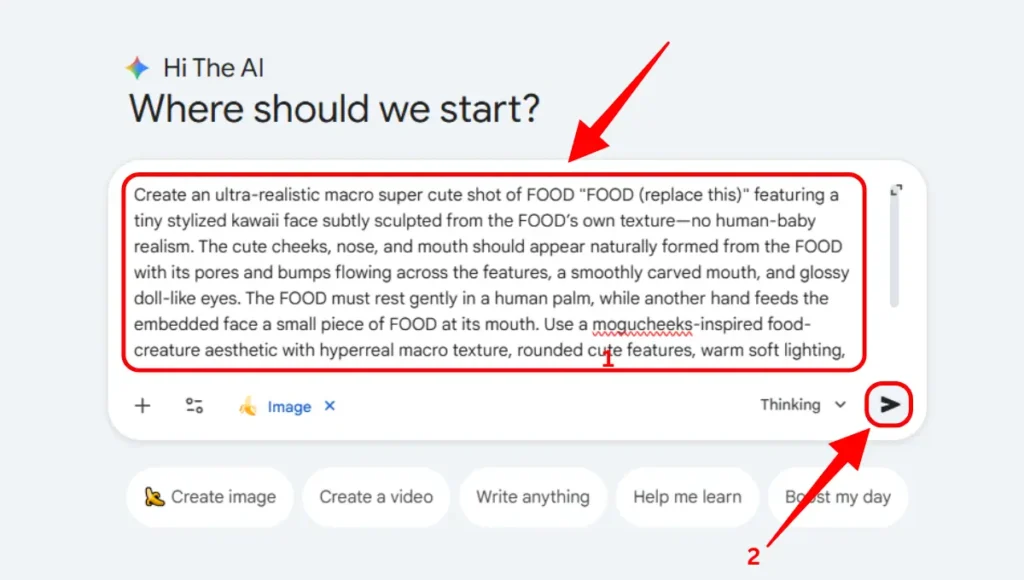
3. Then copy and paste the following prompt as it is, just replace the “FOOD” word with whatever food or thing you want to make the ASMR video of.
The Prompt:
Create an ultra-realistic macro super cute shot of FOOD “FOOD (replace this)” featuring a tiny stylized kawaii face subtly sculpted from the FOOD’s own texture—no human-baby realism. The cute cheeks, nose, and mouth should appear naturally formed from the FOOD with its pores and bumps flowing across the features, a smoothly carved mouth, and glossy doll-like eyes. The FOOD must rest gently in a human palm, while another hand feeds the embedded face a small piece of FOOD at its mouth. Use a mogucheeks-inspired food-creature aesthetic with hyperreal macro texture, rounded cute features, warm soft lighting, and shallow depth of field (f/1.2–1.4) producing creamy bokeh. Capture tiny excited expressions with glossy innocent eyes. Shot on an 85mm macro lens at f/1.4 with ultra-sharp focus on the sculpted face and a blurred background
4. After copy and pasting the prompt, hit enter or just click on the arrow mark down there, and wait for the image to be generated
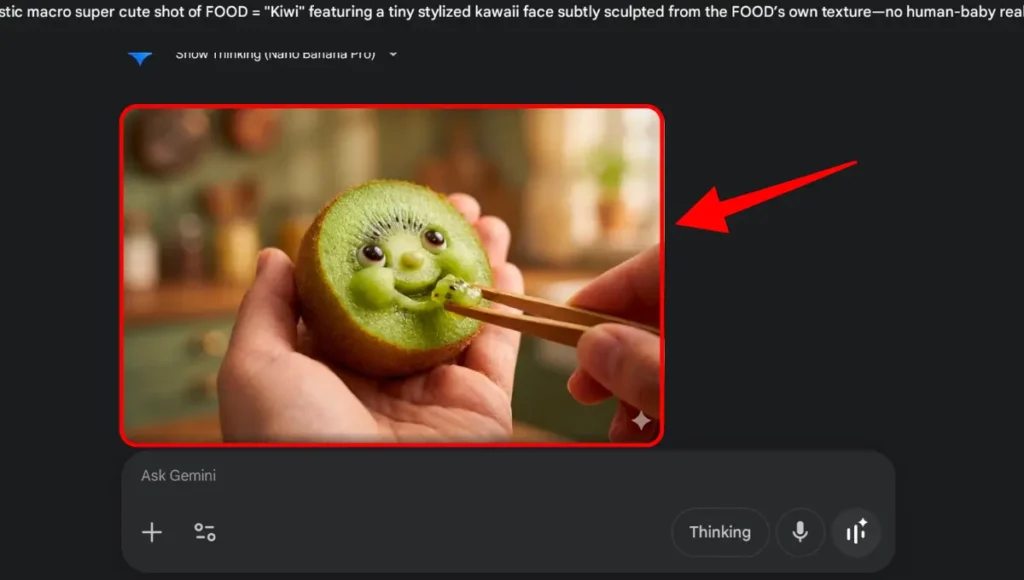
5. Here is our generated image. I am sorry but the dark mode got activated all of a sudden and I took the screenshot. Ignore it. We now have the image.
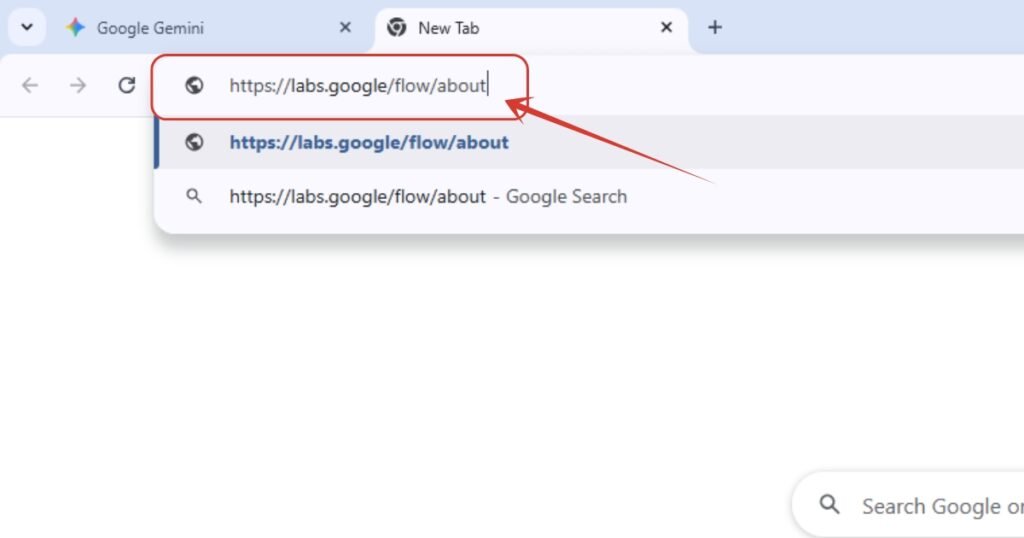
6. Now will go to https://labs.google/flow/about website which a place named Google Flow. Here you can generate amazing videos with Veo 3.1. Now, for those who aren’t familiar with Google Flow, and visiting first time this website, don’t worry, I covered everything until we reach our creation dashboard below. Just carefully follow the steps.
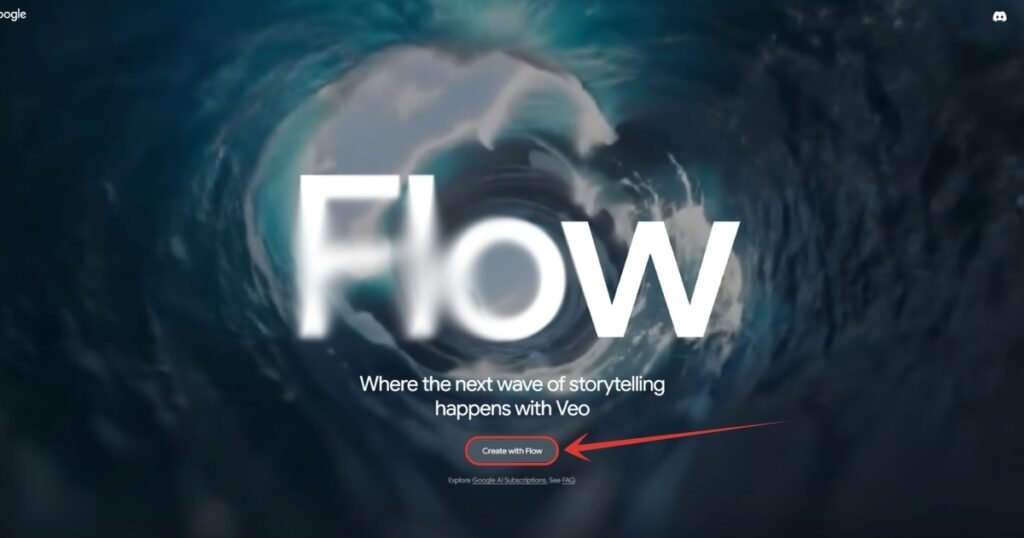
7. Then click here on “Create with Flow” button.
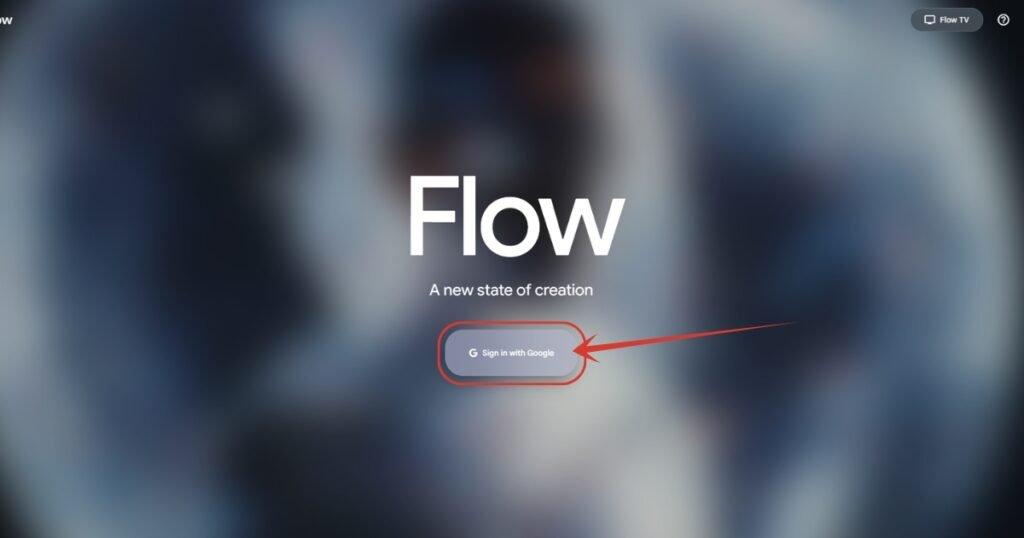
8. Next, click on “Sign in with Google” button and get into the tool.
9. It will ask to accept their privacy and policy, just click on “Continue” button.

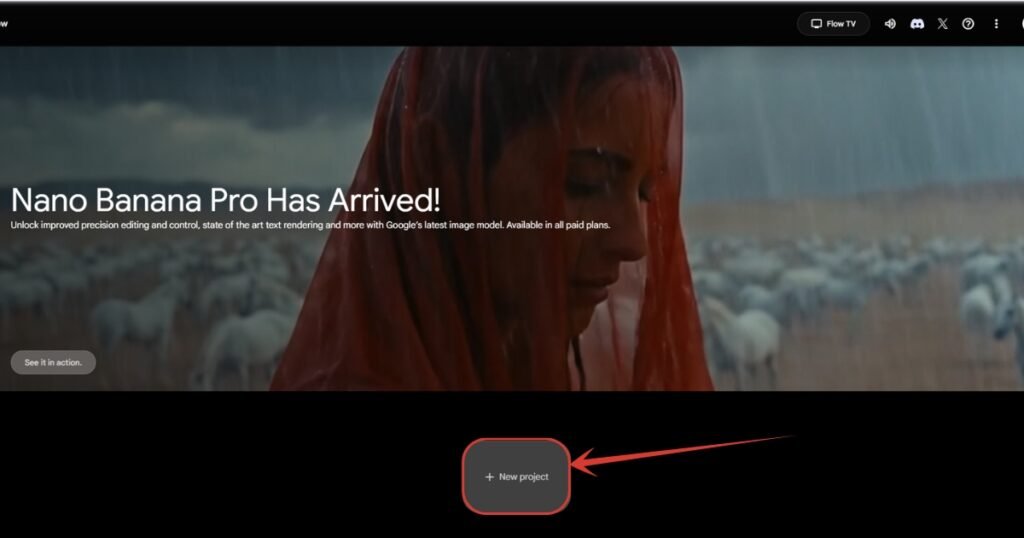
10. In the next page, click here on “New project” button.
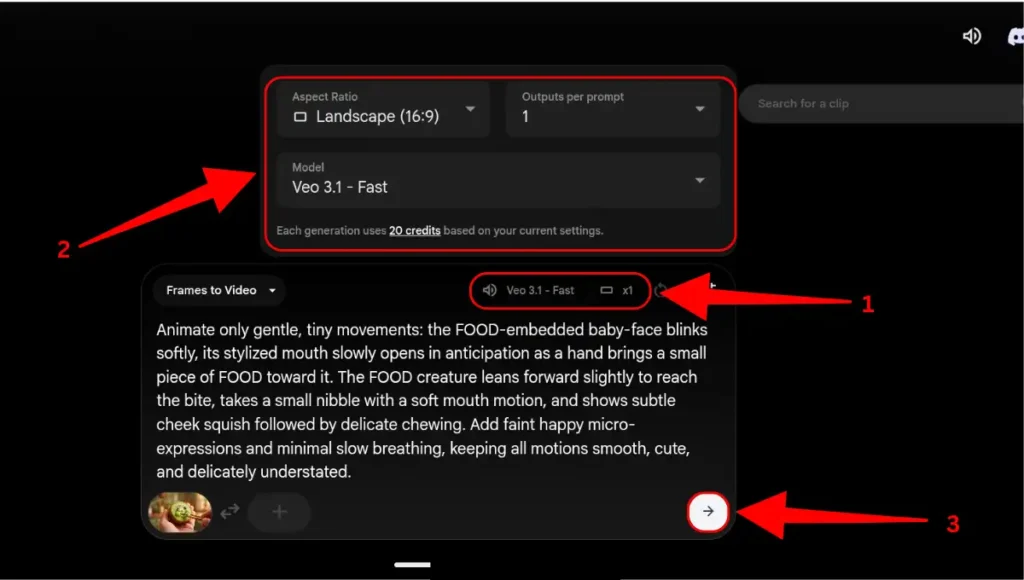
11. We are finally into the main dashboard where will add prompts, images etc. Here you can see I have 180 credits. Every new account will get 180 credits, and each video generation will cost you around 20 credits if you use the setting I will show you in further steps.
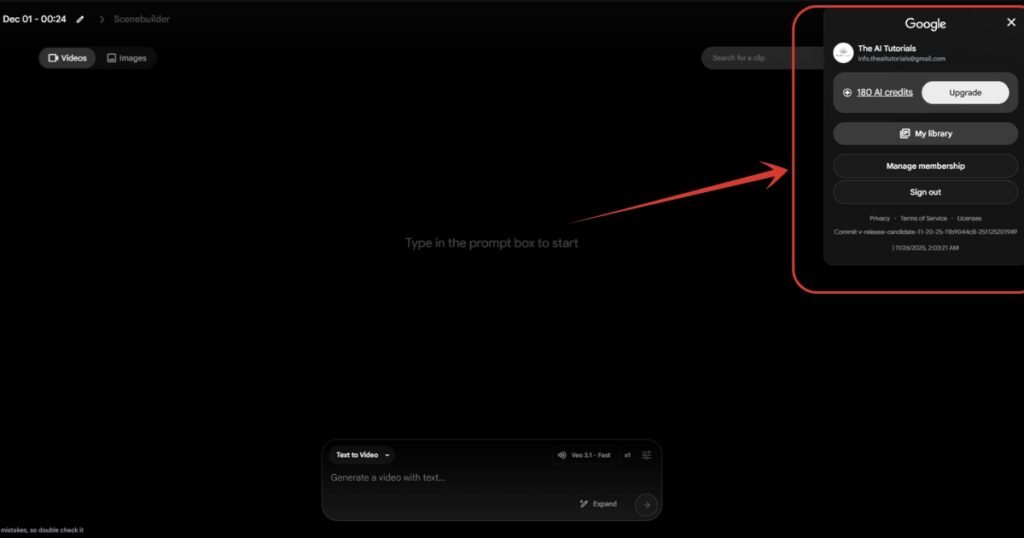
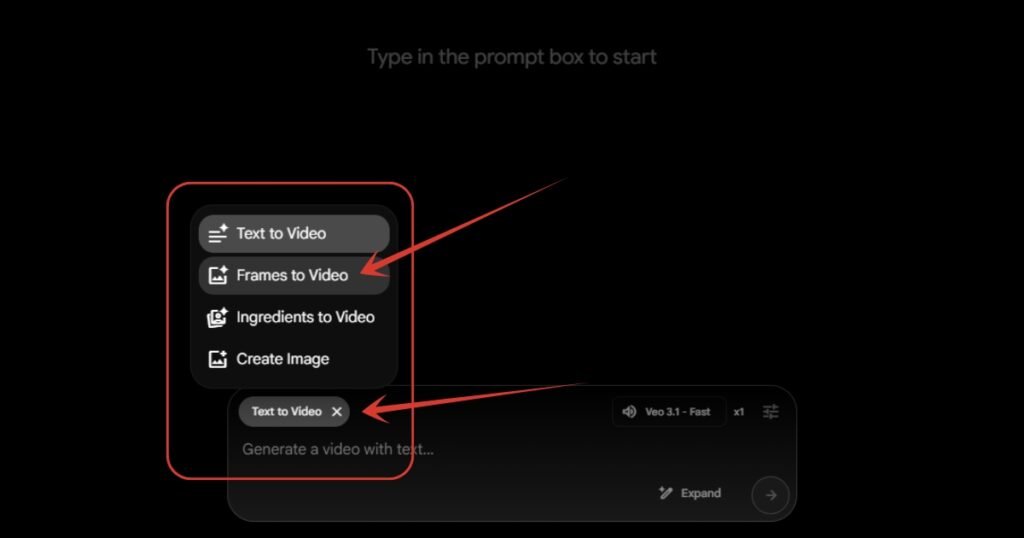
12. Click on “Text to Video” button, a list will come up, and in that list you need to select “Frames to Video” option.
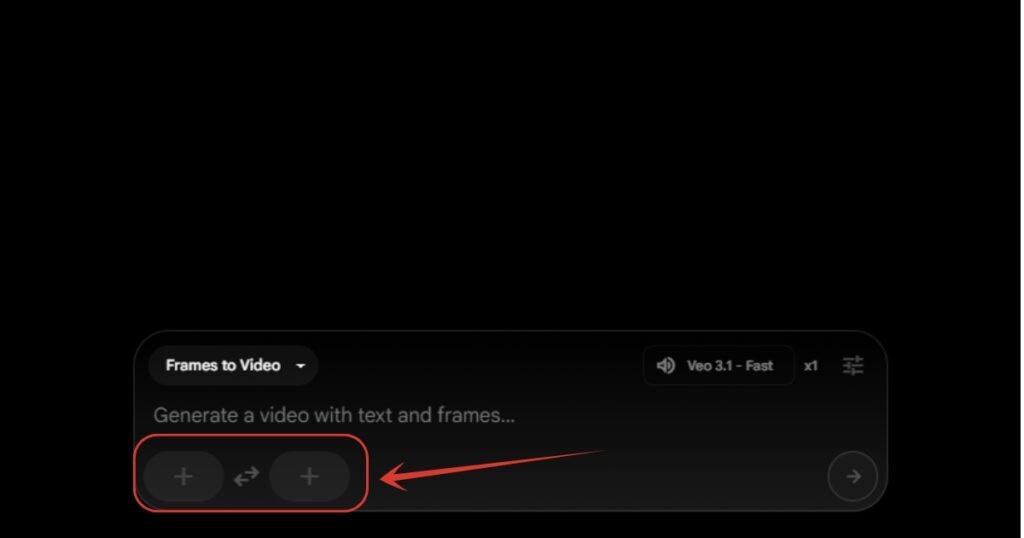
13. As you can see, after selecting the “Frame to Video” option, we have got two input slots where will be adding our image. For you kind information, Google Flow doesn’t have a straight Image to Video option, instead, in the Frame to Video option, we will be adding image to the first slot only and keep the second slop empty.
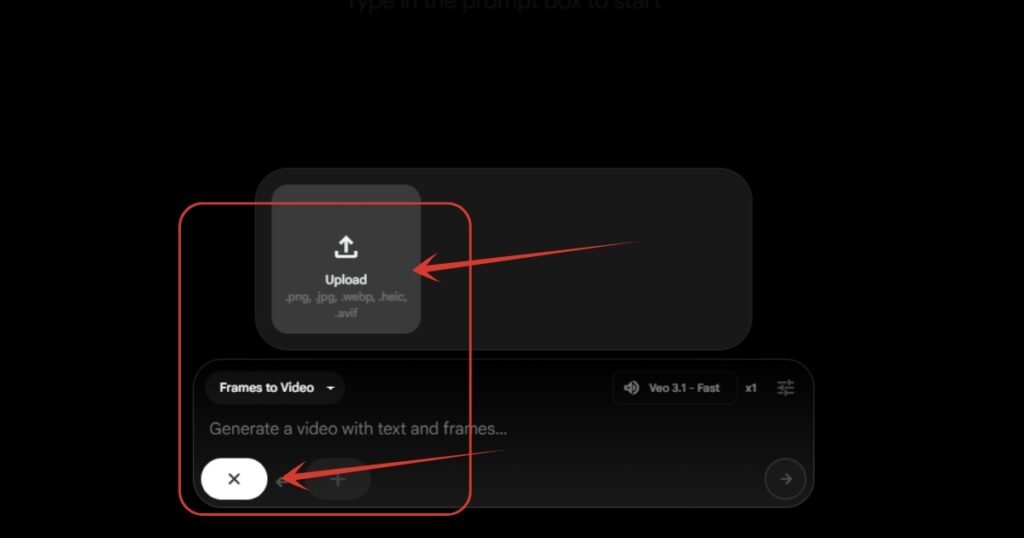
14. Click on the first left + button, then click on “Upload” button, then a your local file explorer will open from where you have to select the fruit image.. Forget the right + button for now, it’s no use for us as of now.
15. As you can see, my Kiwi fruit’s image is loaded. Plus, I have also entered the prompt to animate it. Below is the prompt, just copy and paste it in your step too, without any modifications or changes in it.
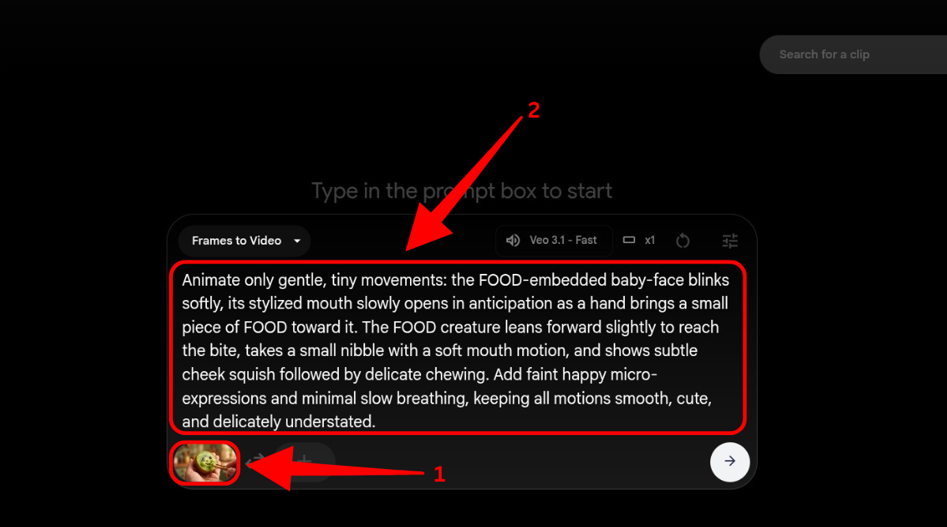
16. Lastly, click on the setting panel down there, and copy the exact settings I have shown in the image. You can adjust the aspect ratio depending on the fruit image you generated. I have generated a landscape image, so I have selected “Landscape (16:9). After all this, just hit enter or click on the arrow mark down there to begin the generation.
And you are all done. Now you just have to wait until the video processes. However, if the first generated video didn’t satisfy you, just generate another with the same prompt and image.
Also Read:
How to Make Viral AI Baby Podcast Video for Free? Step by Step TutorialHow to Create Trending Start and End Frame AI Videos for Free? Step by Step Tutorial
How to Make Trending Home Transformation Videos using AI? Step by Step Tutorial
People Also Ask:
Nano Banana Pro is Google’s advanced image generation model inside the Gemini platform. It creates high-quality images from text prompts and supports detailed control over composition, lighting, and style. You can also edit or refine images iteratively using prompt follow-ups.
You can generate images with Nano Banana Pro for free up to a limit. However, recent changes now limit free usage to around two images per day for free accounts, with higher limits and faster access available via paid plans.
Tools like Google Flow or the new Gemini photo-to-video feature can generate short video clips from still images. You upload an image, provide a text prompt describing motion, and the video model (like Veo 3.1) produces an animated sequence.
Yes. You can replace the word “FOOD” in the image prompt given in this tutorial with any food or item you like, such as kiwi, strawberry, cake, chocolate, or even non-food objects.
Google Flow uses Veo 3.1, which produces smooth, realistic motion and high-quality animations. It works especially well for turning still images into short, cinematic videos. Above all, it gives free 180 credits to non paying accounts every month.
It’s a viral trend where people are making any fruit’s super cute baby version and making it eat itself as a slice or piece.
Conclusion
That’s it—you’ve now learned how to turn a single AI-generated image into a cute, animated ASMR-style video using Nano Banana Pro and Google Flow.
The process may look long at first, but once you try it, you’ll realize how straightforward and fun it actually is.
If your first result isn’t perfect, don’t worry, just regenerate and experiment. With a little practice, you’ll be creating eye-catching animations in minutes.




Leave a Reply