

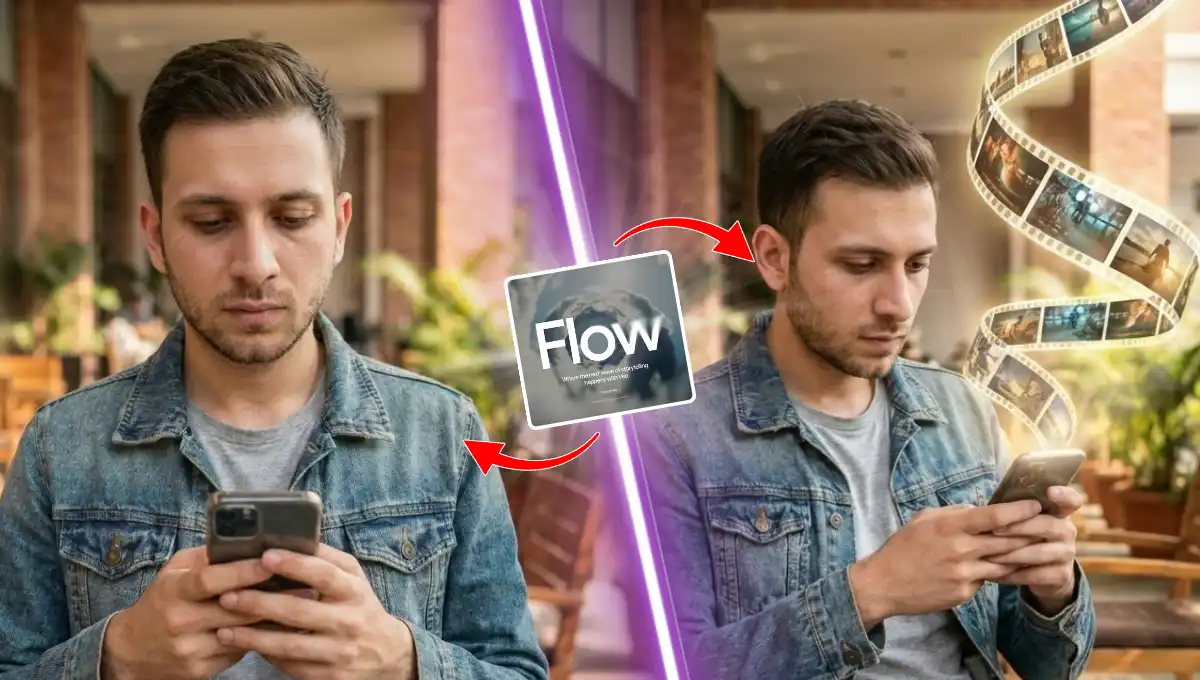
Have you ever wanted to turn a simple photo of yourself into a cinematic video? The good news is, you don’t need fancy equipment or complex skills.
A new trend has taken place where a person is holding the phone, where a glowing and continuous ribbon type film comes out from the top of the phone.
With just one photo, Google’s Veo 3.1 video model, and the Flow platform, you can create this impressive AI-generated video in just a few minutes.
Today I will walk you through the entire process step by step, in the simplest way possible.
Key Takeaways:
- You just need an image where you are holding your phone. A wide angle image will work good.
- We will use Google’s Veo 3.1 video generating model through Flow platform.
- Attach your image, and copy and paste the prompt from below.
- Now, all you need to do is wait. If the first video didn’t satisfy you, just try again.
Step by Step Tutorial:
● How to Create Trending Start and End Frame AI Videos for Free?
Before getting started, you will be in need of a photo, where you are sitting on standing holding your phone. Like the following.

You can ask your friend or someone else to capture you photo like this, and move towards the following steps.
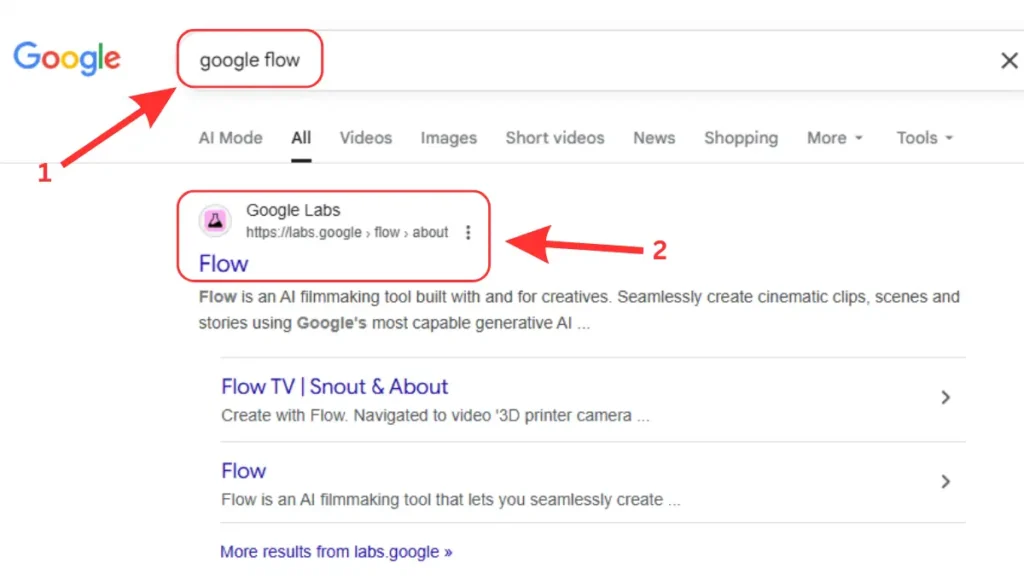
1. First, go to Google and search for “google flow”, and click on the first website as shown in the image down there.
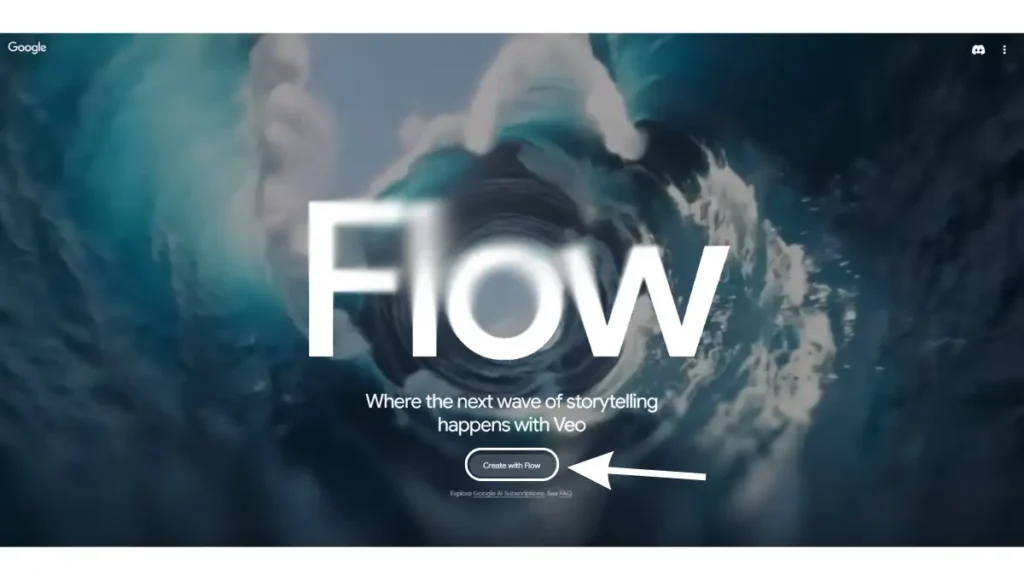
2. The click on “Create with Flow” button.
3. If you are signing up for the first time, then you will be asked few things to accept and then sign up. Just follow them.

4. Once you are on your dashboard where you will find all your generations, click on “New project” button down there.
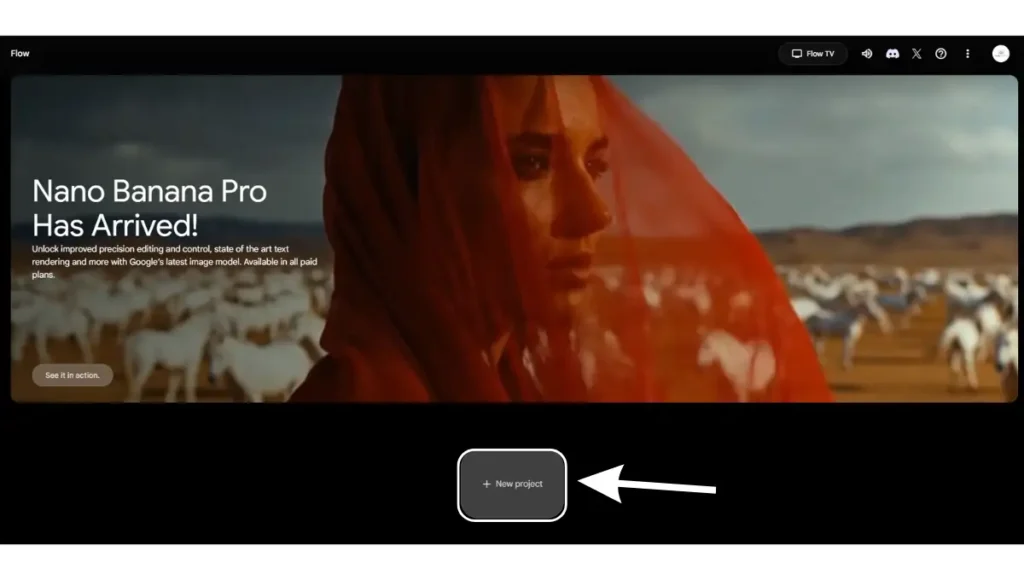
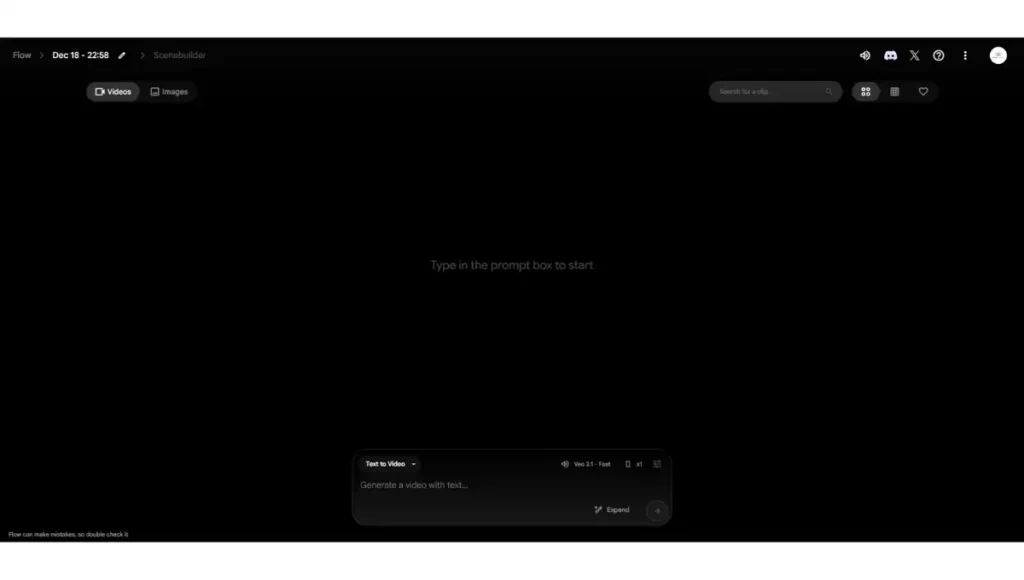
5. Now we are here in main page, where we will generate our video.
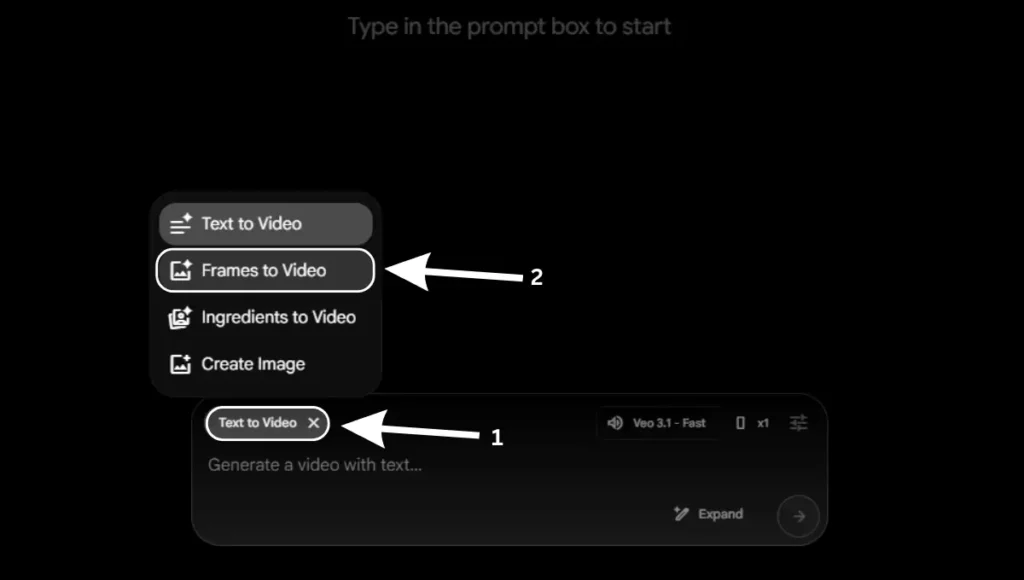
6. Click on “Text to Video” option, then from the list appears, select “Frames to Video”.
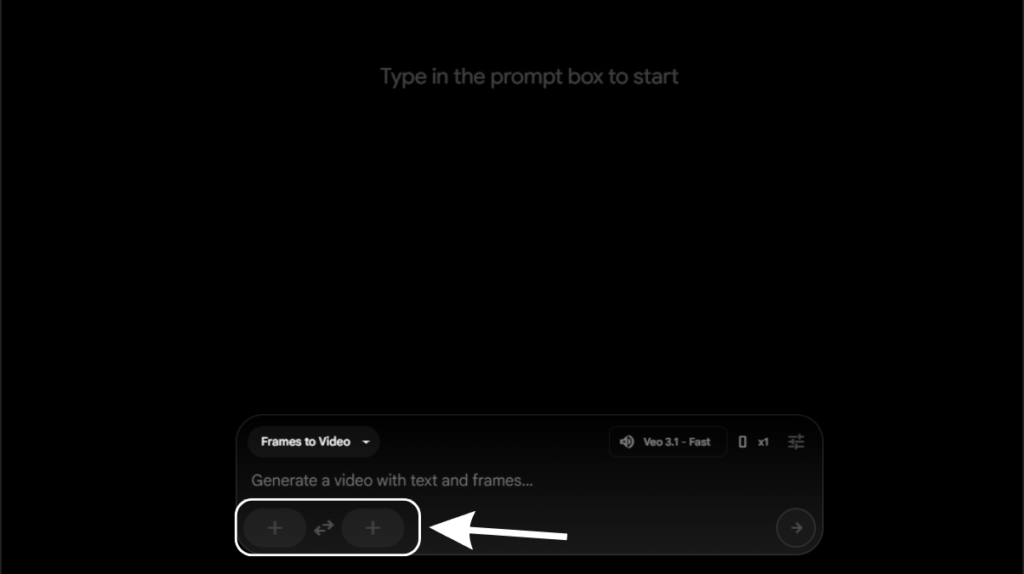
7. As you can see, after selecting “Frame to Video” option, we got enabled with these two sections where we will upload our image. Just for your information, Google Flow doesn’t have a single image upload section, but this will work for us in same way.
● How to Make Viral AI Baby Podcast Video for Free?
8. Click on the first + button, then click on “Upload” option. A pop up will appear from your device from where you have to select your image. The same image in which you are holding your phone.

9. As you can see in the below image, I am done uploading my image holding the phone. Plus, I have also wrote the prompt which will do the rest of the magic. Copy any of the prompt from below.
Copy Prompt: “A cinematic scene of this person focused on his phone. Glowing film strips flowing under the floor, all connected as one continuous ribbon to the top side of phone. Each strip displays moving, colorful video scenes that illuminate the space with soft reflections. The user swipes slowly, looking tired. Smooth camera motion, shallow depth of field, cinematic lighting.“
Copy Prompt: “A realistic cinematic video scene set in a modern outdoor café corridor with brick walls, glass windows, wooden tables, and lush green potted plants. A young man in his late 20s sits relaxed on a wooden chair, wearing a light blue denim jacket over a gray t-shirt and dark pants. He is holding a smartphone with both hands, looking down at the screen with a focused, calm expression. The camera is positioned at a medium shot, slightly angled from the front-left, with shallow depth of field and warm natural daylight illuminating the scene. The background is softly blurred, emphasizing the subject. As the video begins, everything is still. Then, a soft golden glow slowly emanates from the phone screen. From the phone, a luminous, semi-transparent film-strip made of light begins to emerge. The glowing strip gently rises upward in a smooth, flowing motion, twisting and spiraling in the air above the phone. The film strip contains small, vivid cinematic frames inside it, each frame subtly animated with warm highlights, giving the impression of memories, videos, or stories coming to life. The glow softly reflects on the man’s hands, face, and jacket, enhancing realism. The strip continues to float upward in an elegant S-shaped curve, maintaining a magical yet realistic look—no sudden movements, very fluid and graceful. The man remains still, absorbed in his phone, unaware of the spectacle unfolding above it. Lighting remains natural with added soft volumetric glow around the strip. The mood is calm, modern, and slightly magical. Ultra-realistic textures, cinematic color grading, 4K quality, smooth motion, no camera shake.“

10. Lastly, click on “Veo 3.1 – Fast” option down there, and copy the exact settings. Or you can adjust the settings according to your needs. And hit enter or click on the arrow button

11. And you are all done. Here is the final video which came out executing all the above steps. And to be honest, I didn’t get this result on the first attempt. I think I got it in the third attempt. So if you don’t get expected results on the first attempt, just try again. A good quality and wide angle image will work good.
● How to Make Trending Home Transformation Videos using AI? Step by Step Tutorial
People Also Ask:
It’s a new trend where many people are creating amazing AI generated videos. In that video, they are holding their phone and scrolling, and a glowing film strip is coming out of the phone’s top which looks actually amazing.
It’s very simple. All you need to have is your phone where you are holding your phone, a prompt which can be copied from this tutorial, and Veo 3.1. Upload your photo, copy and paste the prompt, and you are done.
A photo where your full photo shot is captured in the photo. Either portrait or landscape. A photo with these qualities will bring a better resulting video for you.
Conclusion
And, that was it. As AI era is expanding, each week brings a new trend. And I am here to decode it for you in the simplest way possible.
Making a video like this is simple and does not take much time. You only need one clear photo where you are holding your phone and the prompt.
After that, Google Flow and the Veo 3.1 model do all the work for you.




Leave a Reply