

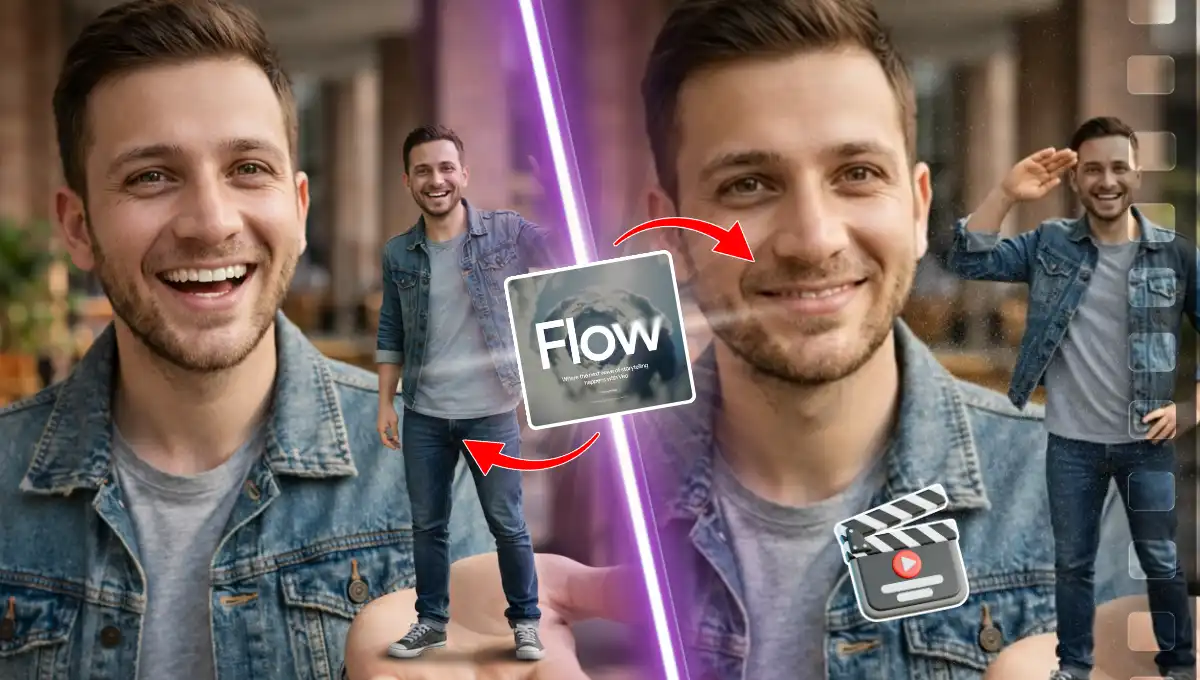
A new trend is here, where people are making their mini and cute replica which stands on their palm and waves.
You may have seen such content on Instagram and Facebook, it’s actually attracting likes and views.
And it’s not just an image, but an attractive and realistic video which is grabbing attention across the social media platforms.
Let’s see how we too can make it. A step by step guide from image genrate to converting it into a fully realistic video.
Key Takeaways:
- ChatGPT is used first to generate the image using a detailed prompt.
- The generated image is then downloaded.
- Google Flow is used to convert the image into a realistic video.
- The process includes uploading the image, selecting settings, and generating the video step by step.
Step by Step Tutorial:
● How to Make Trending AI Celebrity Selfie Video for Free? Step by Step Tutorial
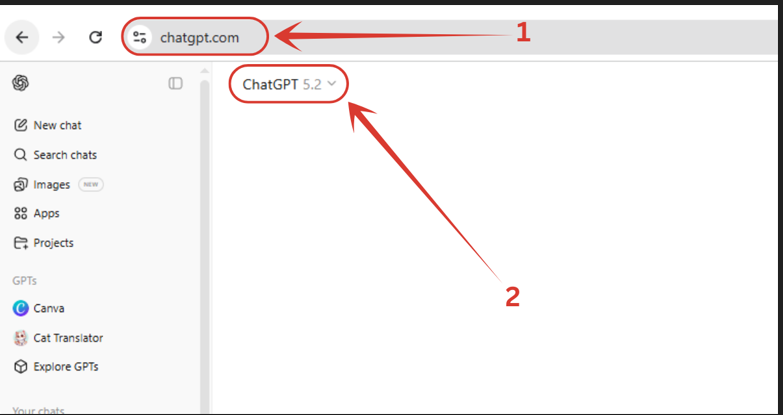
1. Head to ChatGPT first, and then set ChatGPT 5.2 model. If you don’t have access to it, you can get 18 months of free ChatGPT Go plan all for free. Read here for full tutorial.
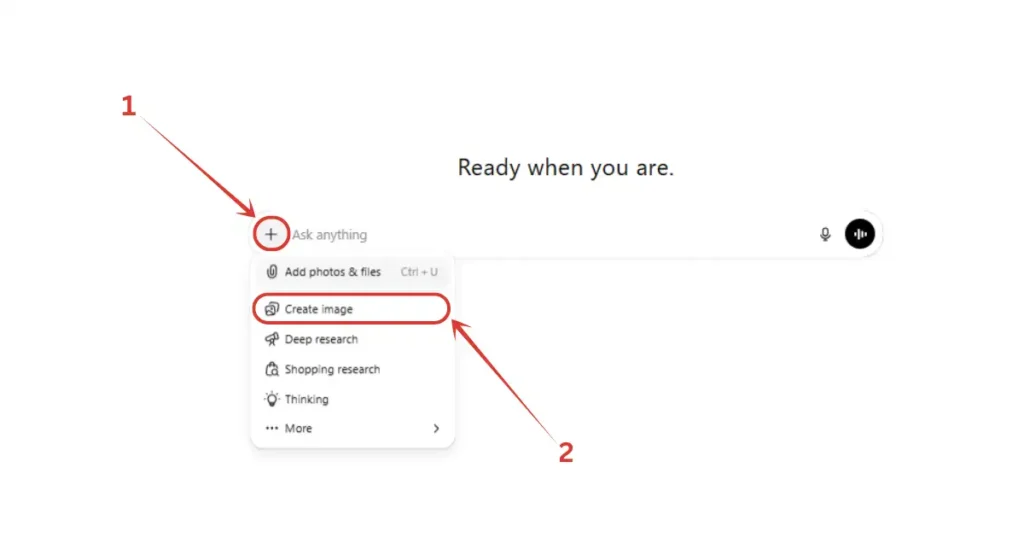
2. Then click on + icon, then select “Create image” option to lead the image generation model.
3. Once it’s enabled, again click on + icon, then click on “Add photos & files” option and upload your image.
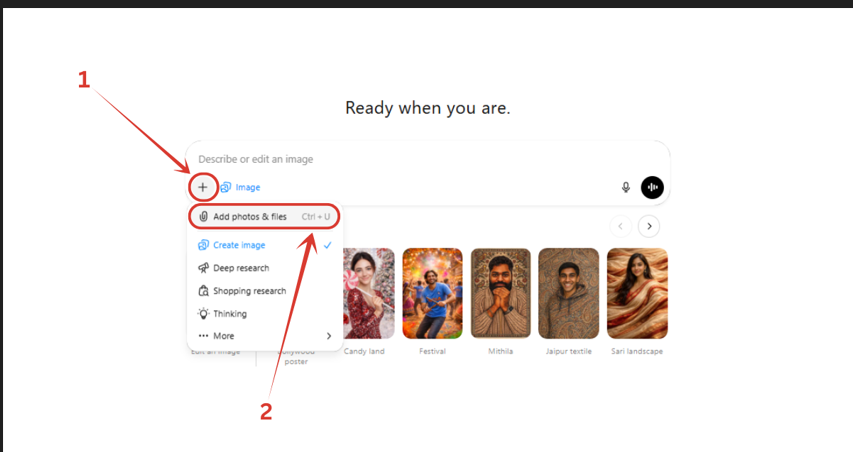
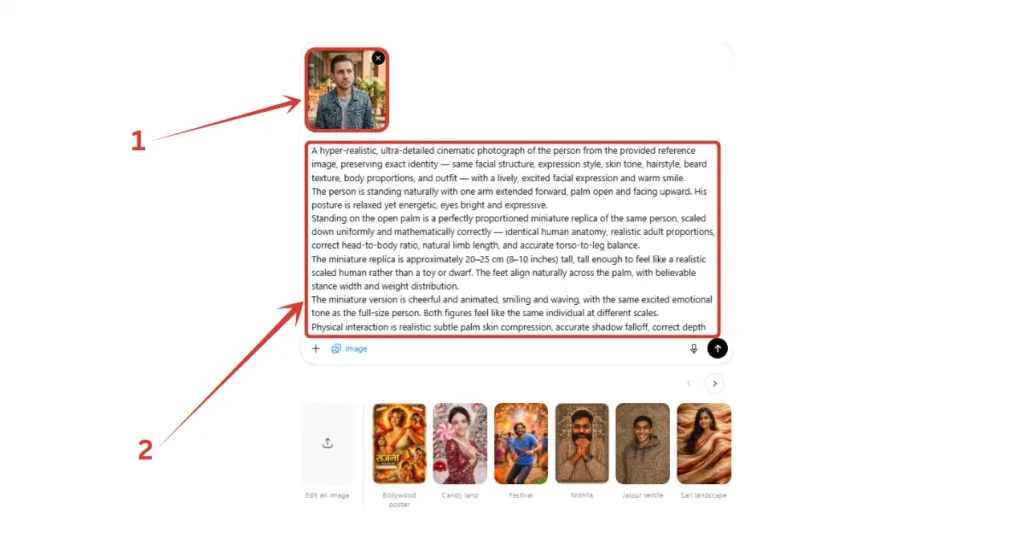
4. As you can see I have uploaded an image here. Now, the main part, the prompt. Copy and paste the prompt from below.
Copy Prompt:
“A hyper-realistic, ultra-detailed cinematic photograph of the person from the provided reference image, preserving exact identity — same facial structure, expression style, skin tone, hairstyle, beard texture, body proportions, and outfit — with a lively, excited facial expression and warm smile. The person is standing naturally with one arm extended forward, palm open and facing upward. His posture is relaxed yet energetic, eyes bright and expressive. Standing on the open palm is a perfectly proportioned miniature replica of the same person, scaled down uniformly and mathematically correctly — identical human anatomy, realistic adult proportions, correct head-to-body ratio, natural limb length, and accurate torso-to-leg balance. The miniature replica is approximately 20–25 cm (8–10 inches) tall, tall enough to feel like a realistic scaled human rather than a toy or dwarf. The feet align naturally across the palm, with believable stance width and weight distribution. The miniature version is cheerful and animated, smiling and waving, with the same excited emotional tone as the full-size person. Both figures feel like the same individual at different scales. Physical interaction is realistic: subtle palm skin compression, accurate shadow falloff, correct depth cues, and consistent perspective scaling. No exaggerated head size, no shortened legs, no cartoonish proportions. Lighting is physically accurate and cinematic, enhancing realism — soft eye highlights, natural skin subsurface scattering, micro-details like pores, fabric weave, denim stitching, fingerprints, veins, and natural imperfections clearly visible. The environment remains photorealistic with shallow depth of field, cinematic bokeh, and natural color grading. Shot in ultra-high resolution, 8K quality, DSLR realism, 85mm lens, f/1.8, razor-sharp focus on both figures. The scene feels completely real — surreal in concept, but anatomically and physically correct.“
5. Our image is now generated. Download it.
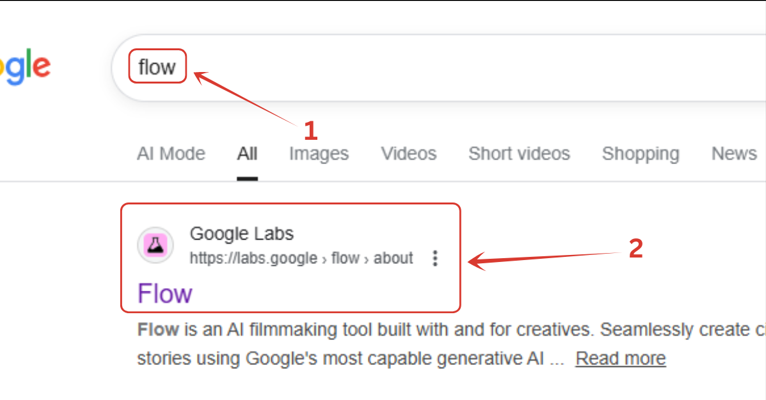
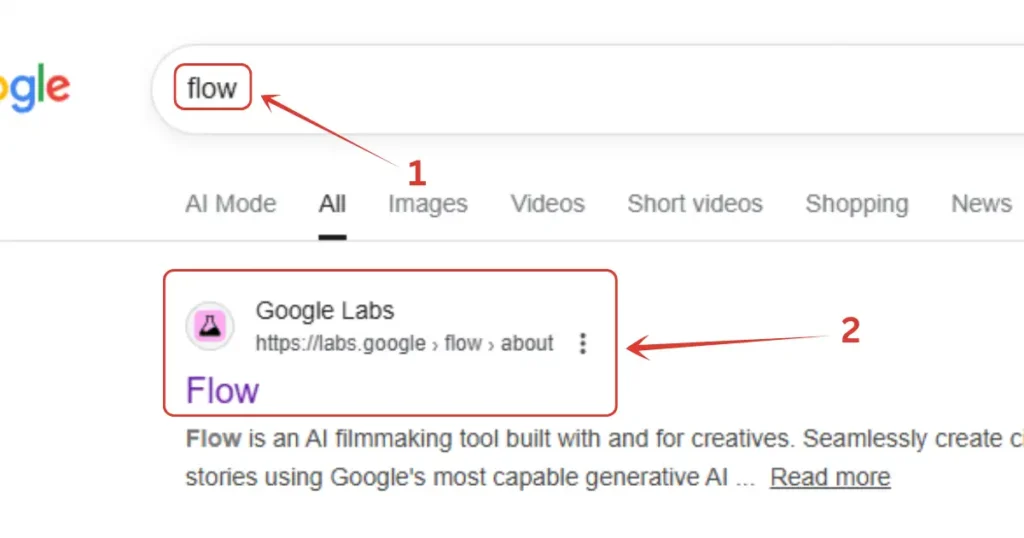
6. Now we will head to Google Flow. Search in Google, and click on first webiste.
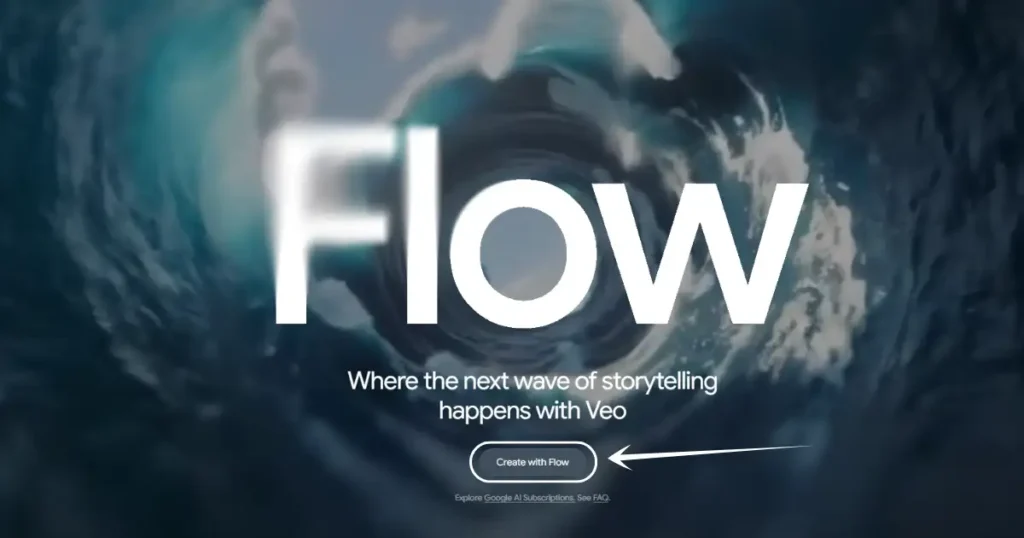
7. Then click on “Create with Flow” button down there.
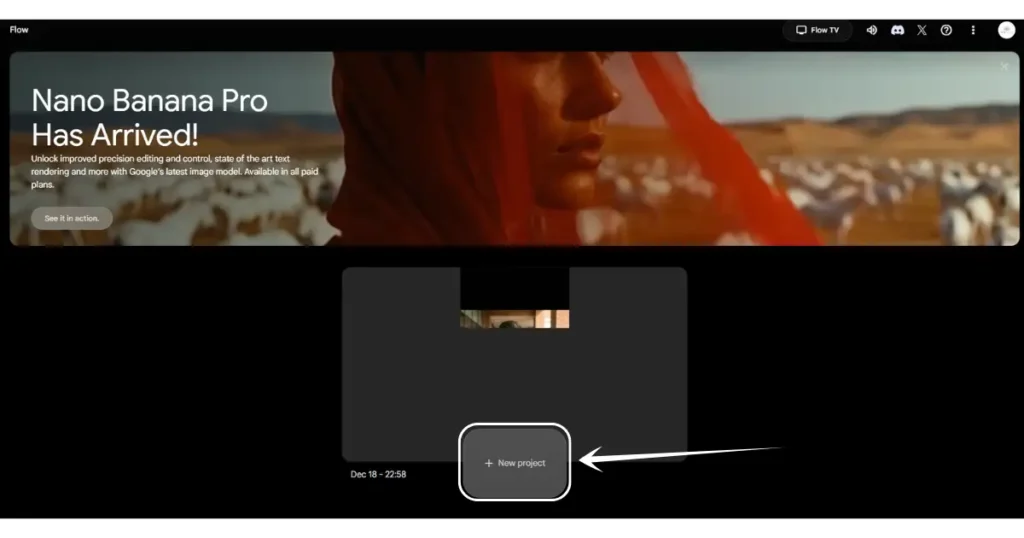
8. After that, click on “New project” button. By the way, if you visit Flow for the first time, it will ask to sign up, so do sign up and reach your dashboard just like this.
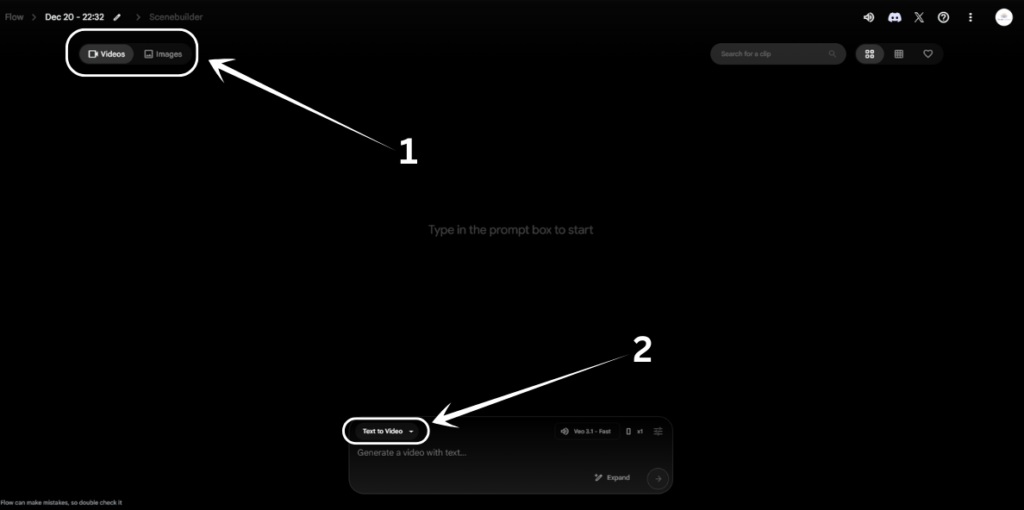
9. Once you land on this page, set it to “Videos” if it’s not, and click on “Text to Video” option.
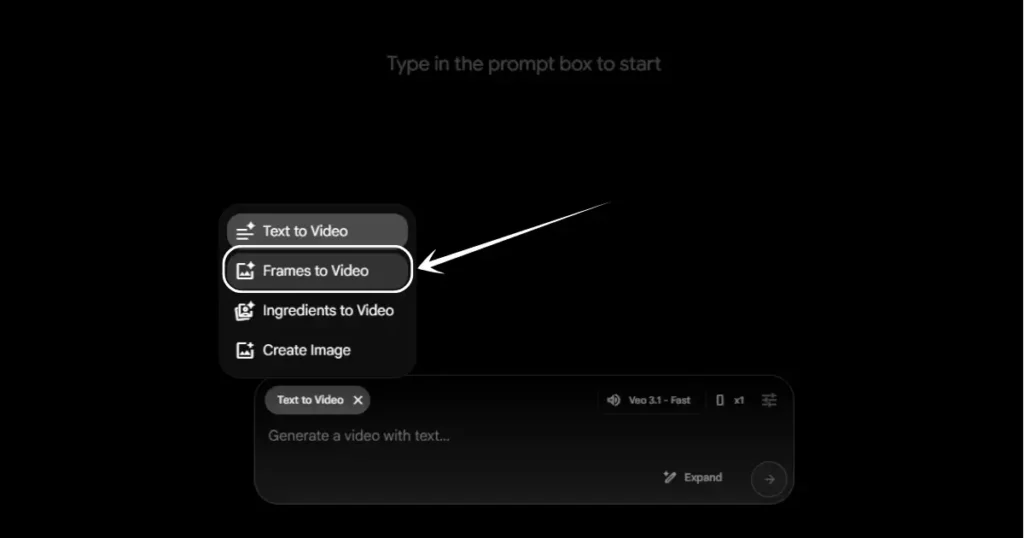
10. After clicking on “Text to Video” option, a list will appear just above it, select “Frames to Video” option there.
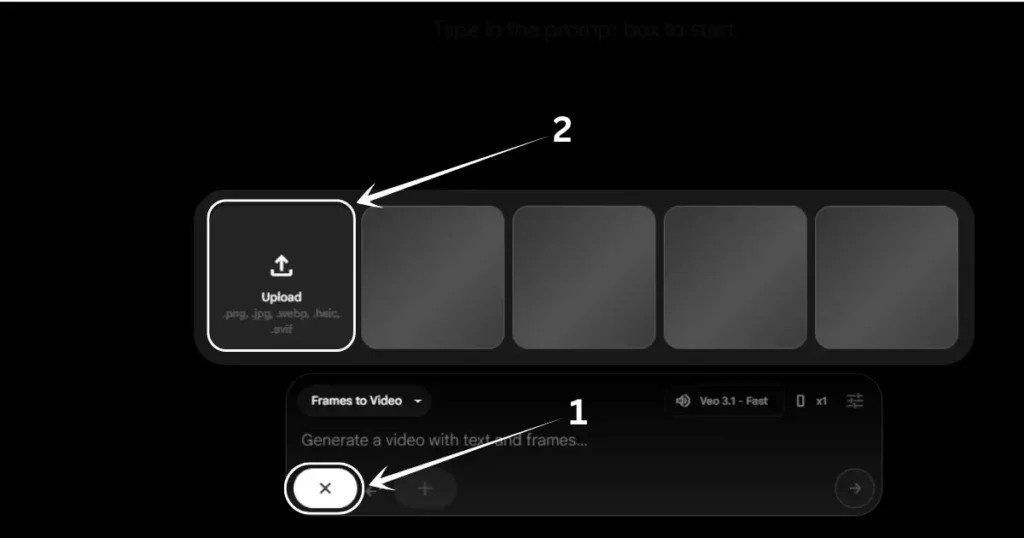
11. As you can see, after selecting “Frames to Video” option, we are enabled with two input boxes. In the left box we will inset our generated image.
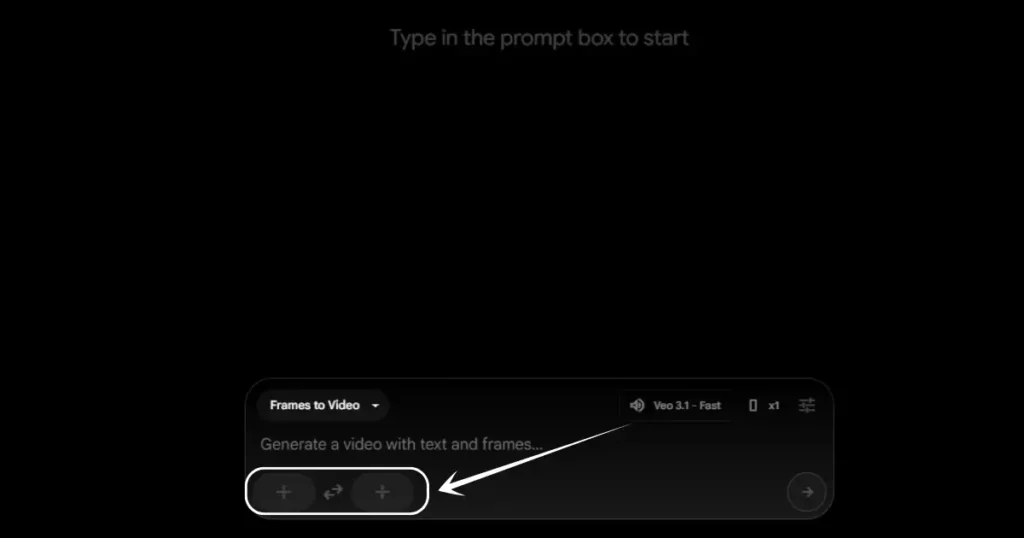
12. Click on the first left + input box, and then click on “Upload” option above it where you need to upload you first image.
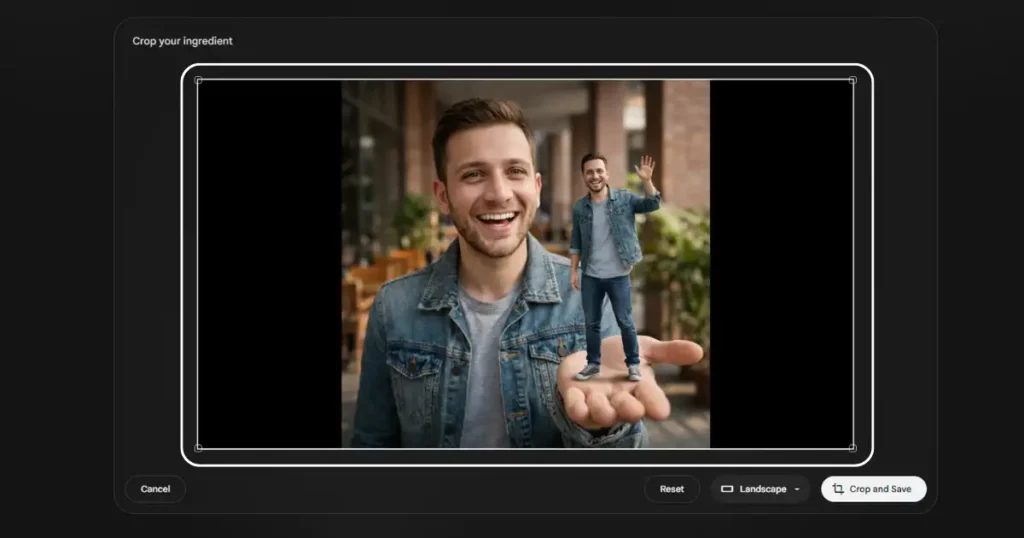
13. After uploading the image, it will ask to select the aspect ratio. My generated image is square, so I accept my mistake here lol. But you can generate your image in landscape aspect, and then select the aspect here, and click “Copy and Save” button.
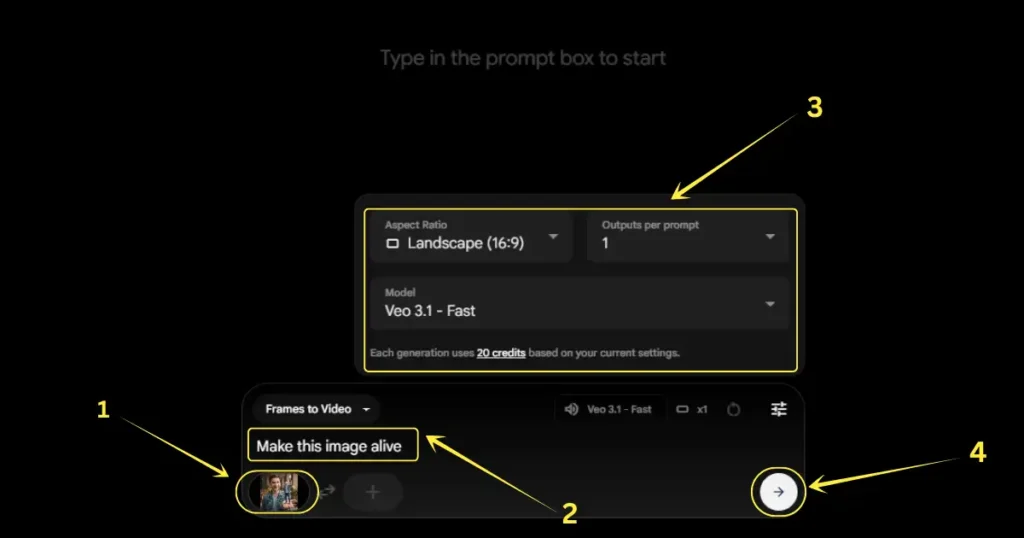
14. Image is uploaded, prompt added which was a simple line “Make this image alive”, copy the settings as shown in the image below and hit enter.
15. And here is our generated video. Have a look.
● Every Camera Angle Prompts for Gemini – Nano Banana Pro | Part 1
People Also Ask:
This trend is about creating a mini and cute replica of a person that stands on the palm and waves.
All you need to have is an image of yours. Head to ChatGPT, give it your image and the prompt from this tutorial. And within few seconds you will be having your image. Then go to Flow where will be using Veo 3.1 to convert this image into video, and a prompt for this too is given in this tutorial.
Yes. The goal is to make the resulting video look realistic. So Veo, Kling and other popular AI video tools can be used for sure.
Conclusion
This new trend of making a mini and cute replica standing on the palm is getting popular on Instagram and Facebook.
It is attracting likes and views because it looks attractive, realistic, and fun. It is not just an image, but a realistic video that grabs attention across social media platforms.
By following a step-by-step process, anyone can generate an image and then convert it into a fully realistic video.



Leave a Reply