

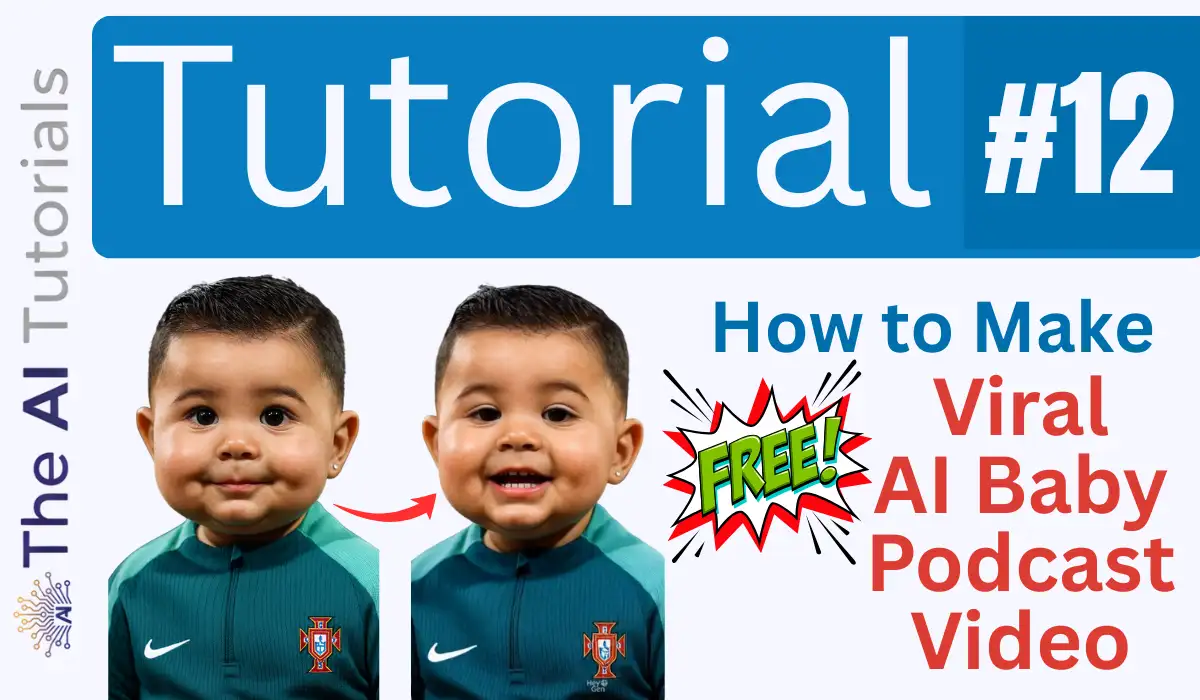
AI is evolving and each week brings a new trend, something that goes so viral that every second source on the internet starts making similar content.
Nowadays, AI generated baby videos and podcasts are taking off. As they not only give cute expressions, but talk in so realistic way which actually pulls attention of viewers.
Today we are going to see how you too can make viral AI Baby Podcast videos for free, where they use baby versions of well-known persons and make them talk in very cute and wiggling way.
Do not worry, I am not going to show you that non-working Hedra AI method, which don’t even give free generations for new accounts. I have another working method which I have tested myself, and found it working.
I will show you guys a simple example in this tutorial, which won’t be a podcast kind of video, but once you understood this, you can generate that type of videos too. So, let’s get started.
Key Takeaways:
- We won’t be using Hedra AI, as it no longer works to generate these kind of videos.
- Will be using Hey Gen AI instead to generate the AI Baby Podcast videos.
- You will should stay ready with a baby photo and an audio too to add and make that baby narrate that audio for you.
- For baby voice generation, we will be using Eleven Labs.
- I know this method can be a bit confusing, so I’ve explained it as simply and thoroughly as possible in 30+ detailed steps.
Step by Step Tutorial:
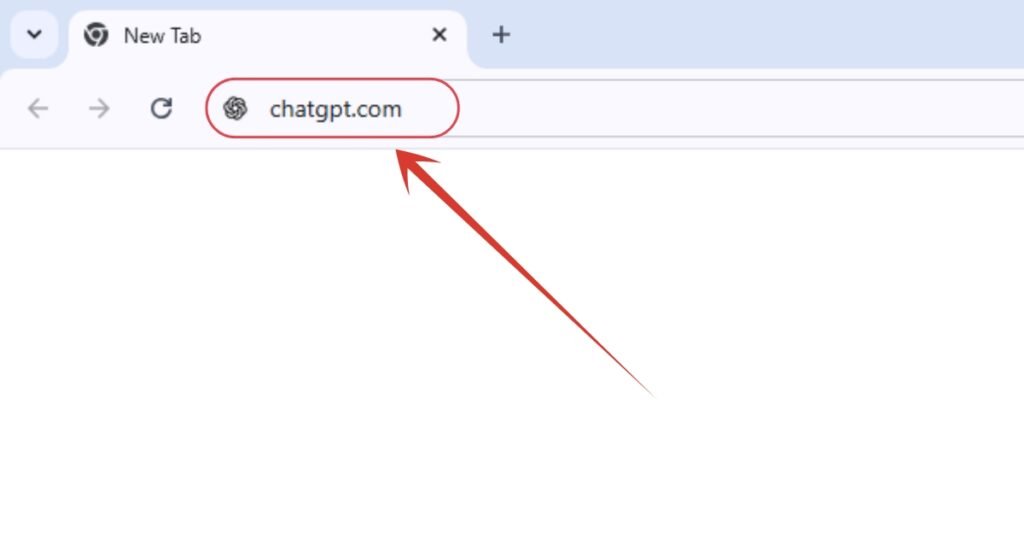
1. First, head to https://chatgpt.com and sign up if you don’t have any account.
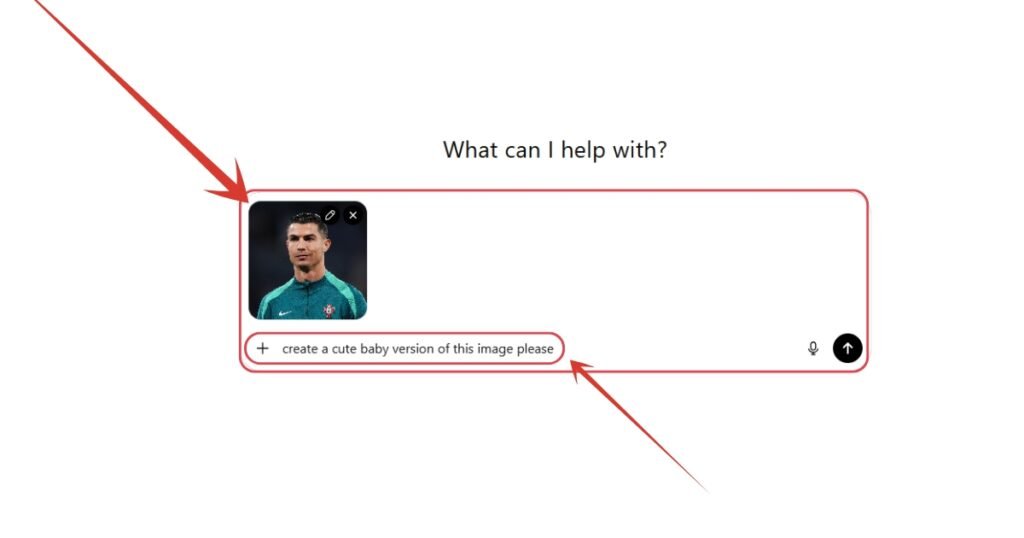
2. Attach a photo which you want a baby version of, and write a simple prompt for it as I have done here.
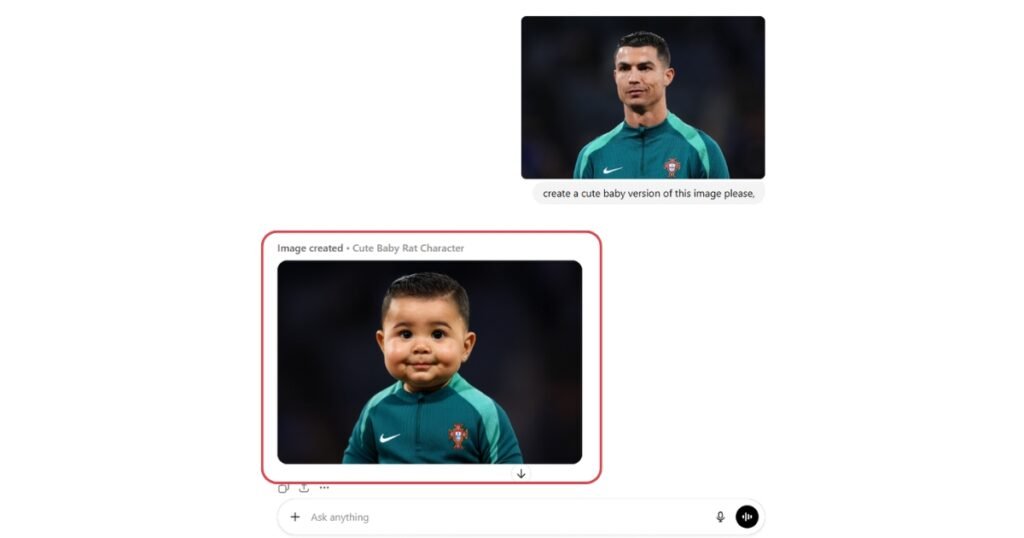
3. After a while, your requested baby version image will be generated. Download it.
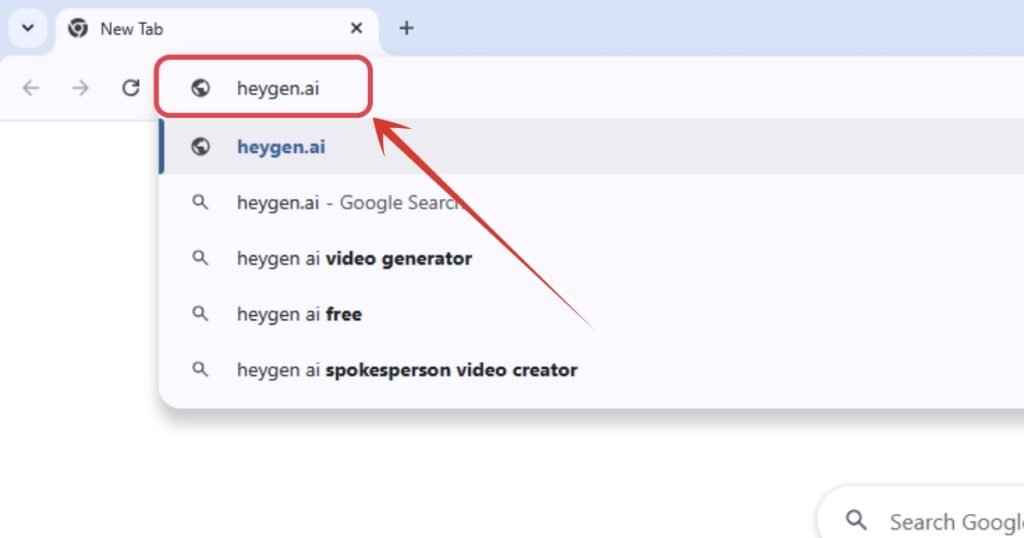
4. We are done with the baby image now which we will convert into a cute talking video. Now, we will head to www.heygen.ai.
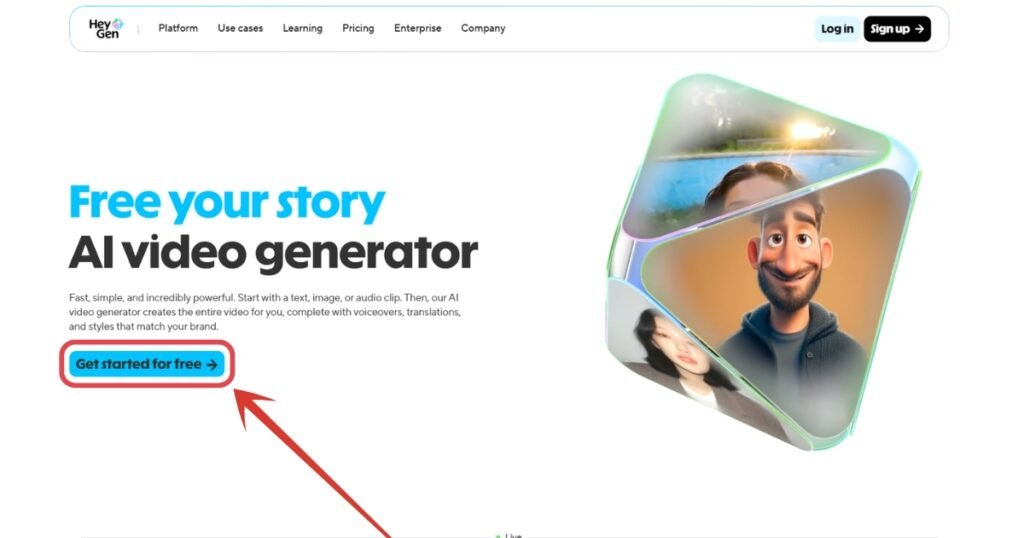
5. Once the website is loaded, click “Get started for free” button.
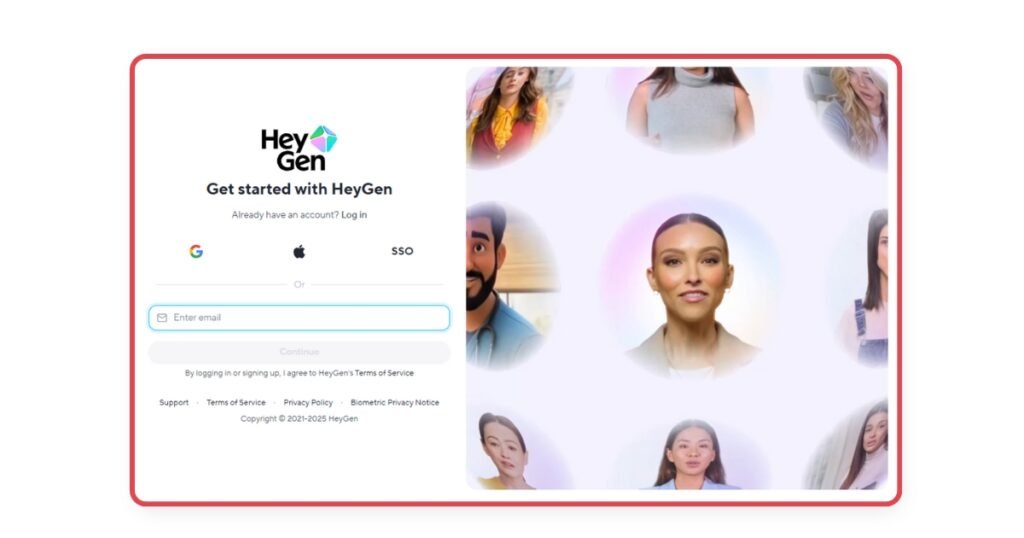
6. Sign up according to your convenience.
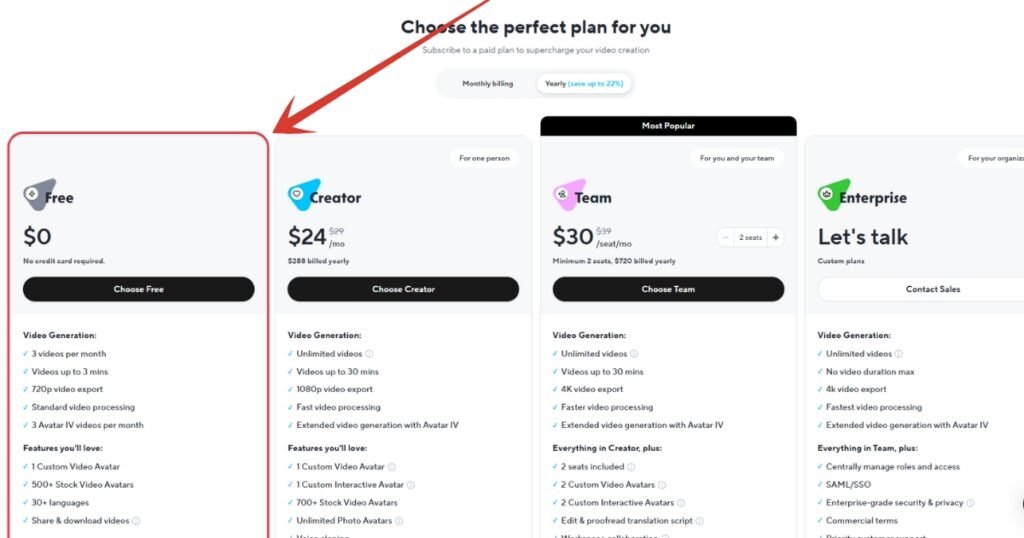
7. Then a window like this will appear with plans. Just click on the first one with $0 Free Plan.
8. After clicking on the free plan, it will ask some questions like why are you using HeyGen, from where you got their reference, what do you do etc. Just select the options accordingly and move on.
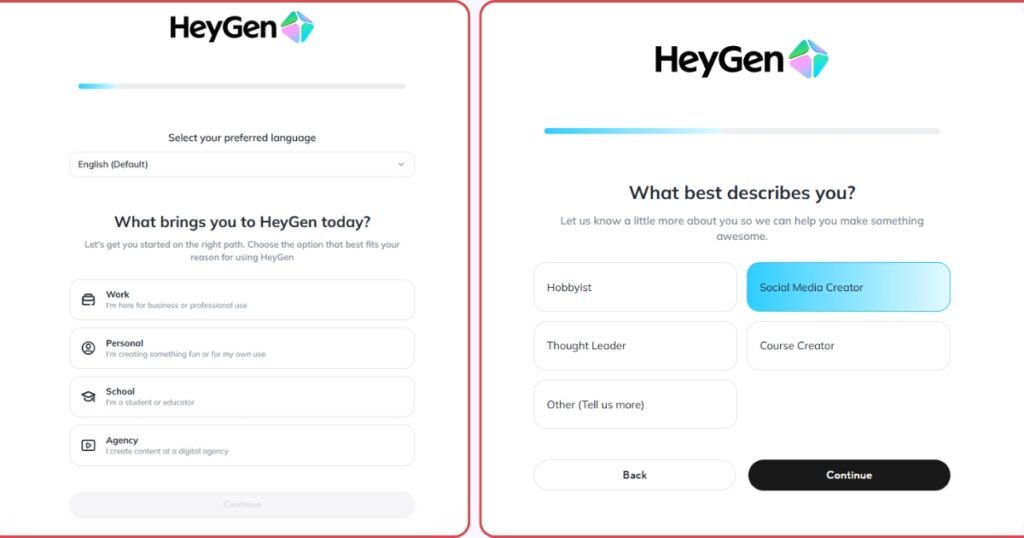
9. After completing the answer session, this window will appear. Here, on the right side, select “Create an Avatar IV video” option.
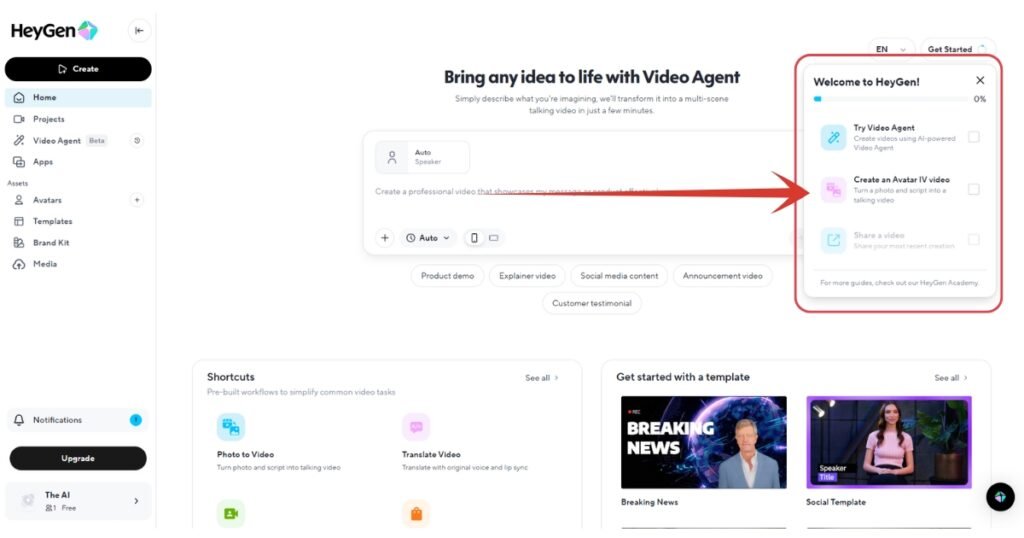
10. After clicking on “Create an Avatar IV video” option, a pop-up video like this will appear. Just click on “Create video” button down there.
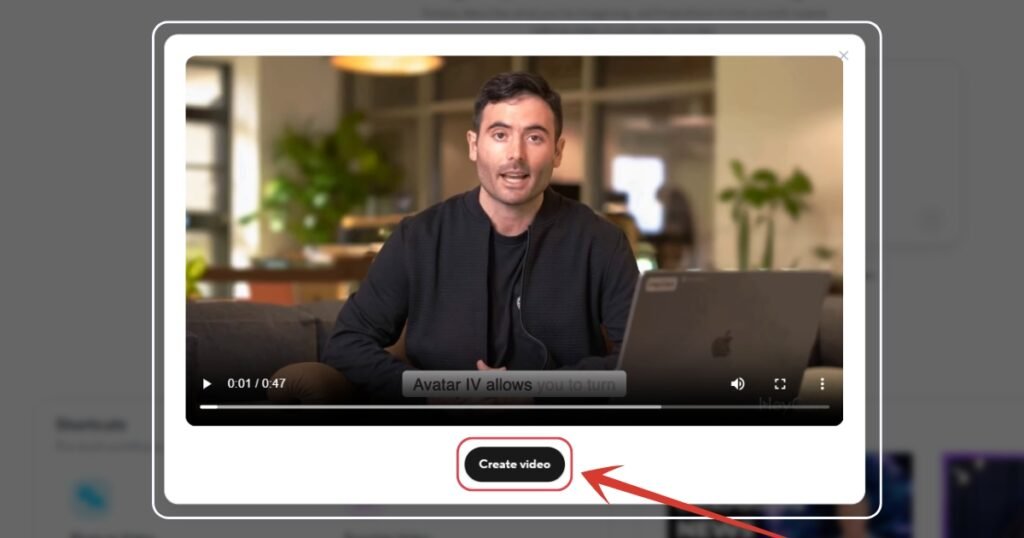
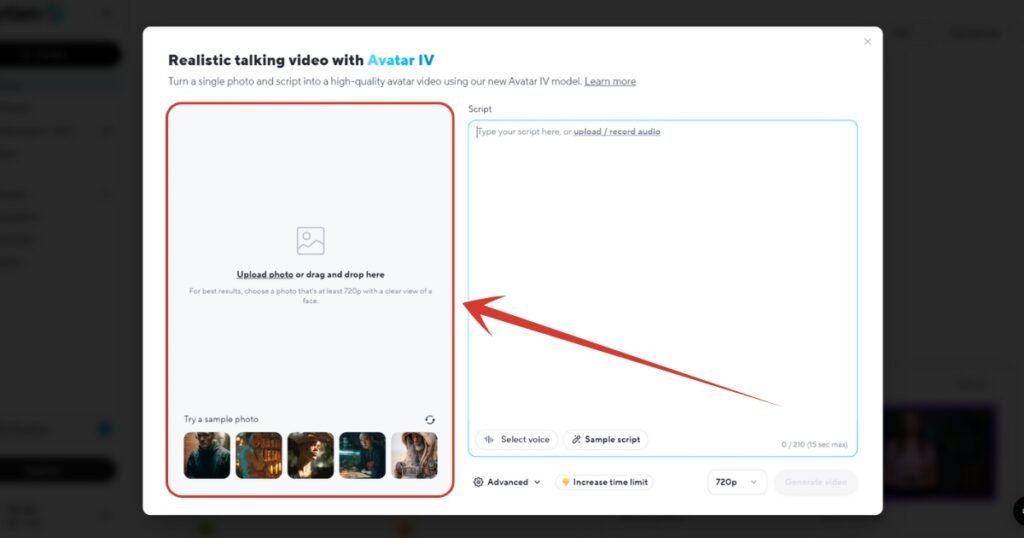
11. A window like this will appear post clicking “Create video” button. This is the most important step. Here you will be uploading the image, the audio file, and the script for your desired video.
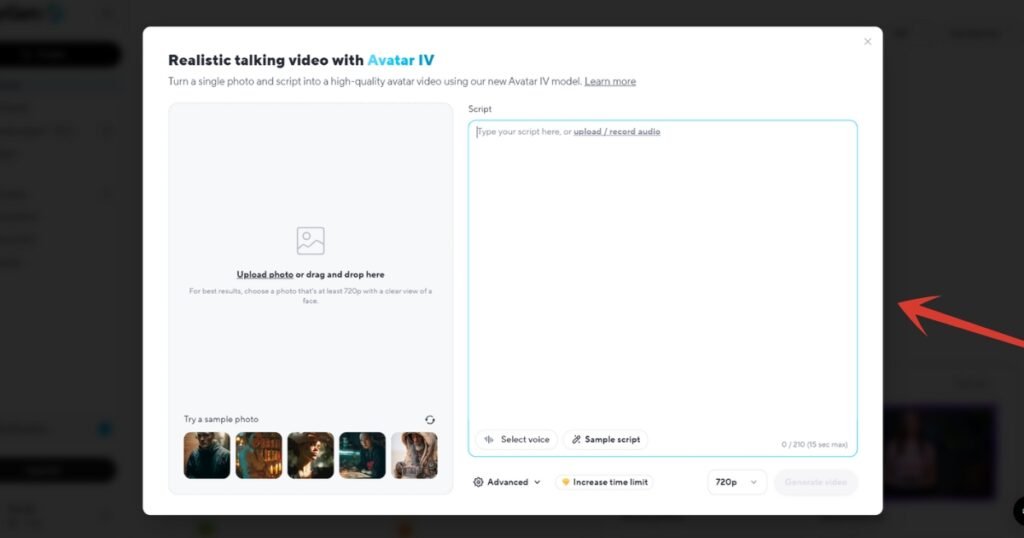
12. First click here, and upload the baby photo.
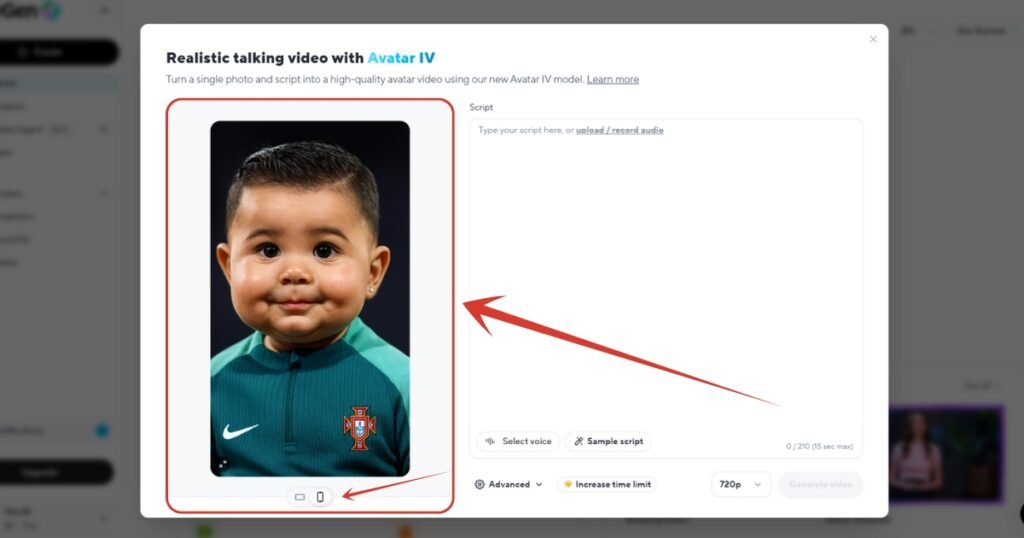
13. I am done uploading the image, also set the aspect ratio to portrait.
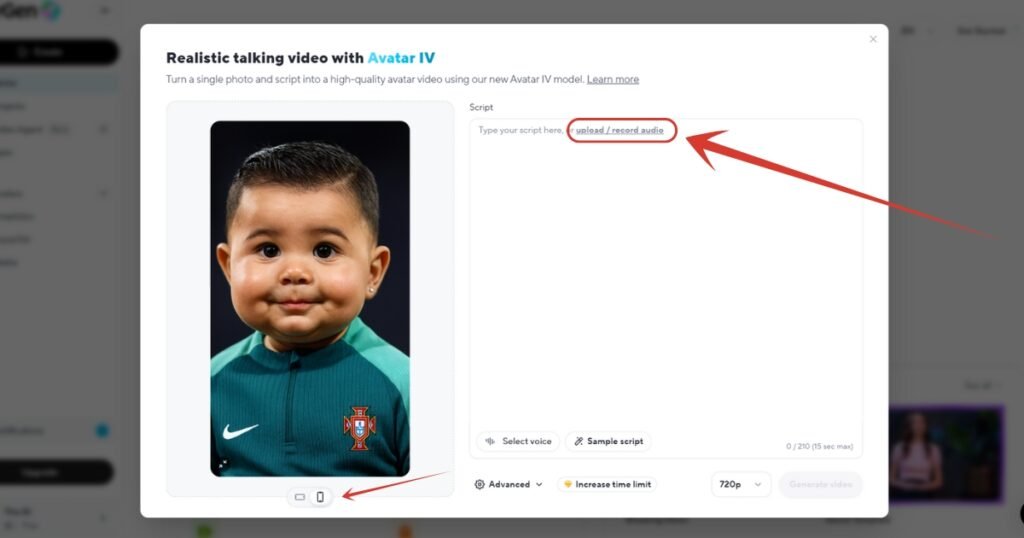
14. Then click “upload / record audio” hyper text to upload the audio file which the baby will narrate.
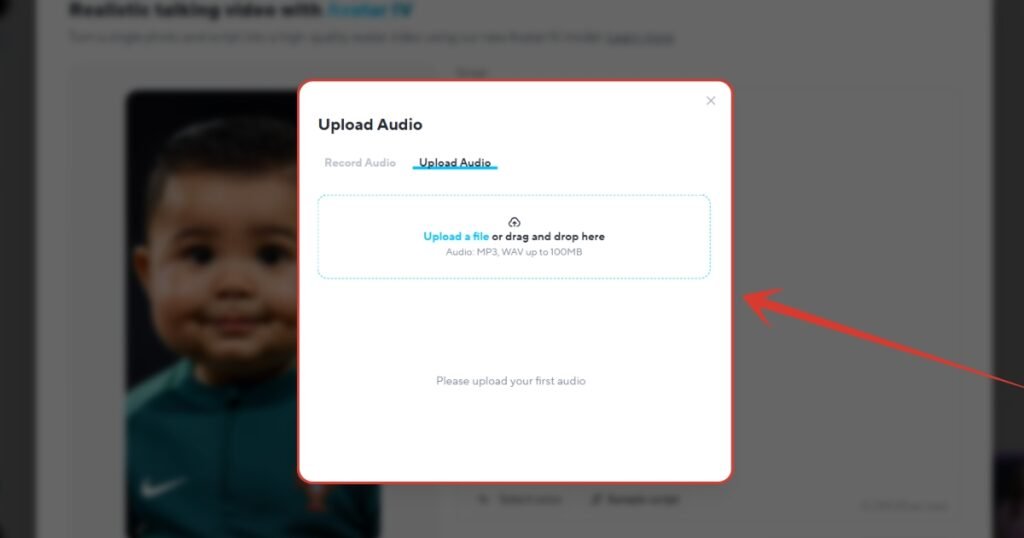
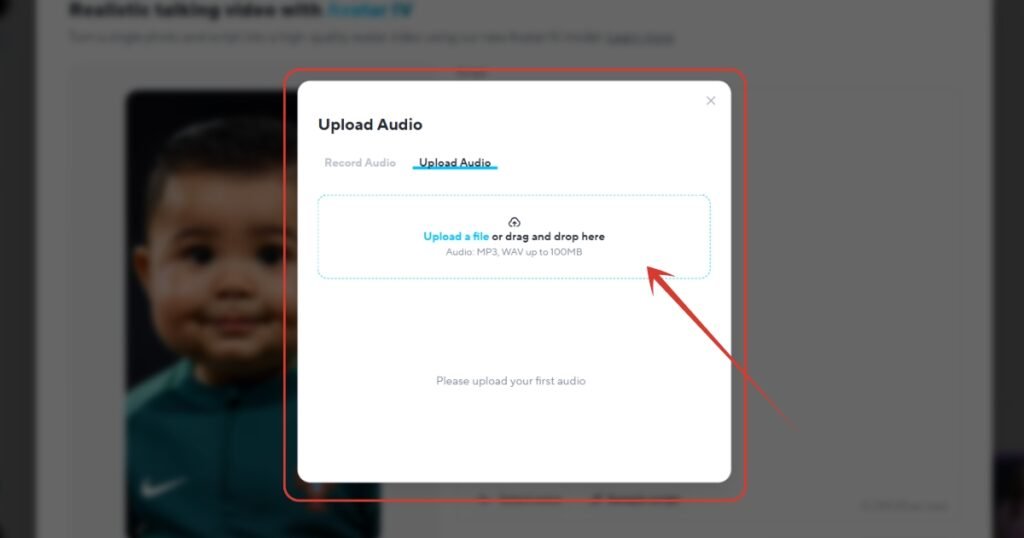
15. A pop-up window like this will appear where you have to upload or drag-and-drop the audio file. Don’t worry, I know most of you would not have an audio file right away. Let’s see how can we create one.
16. Open a new tab, go to https://elevenlabs.io website. It’s one of the best place to generate free and realistic voices. And yes, it does have baby voices too.
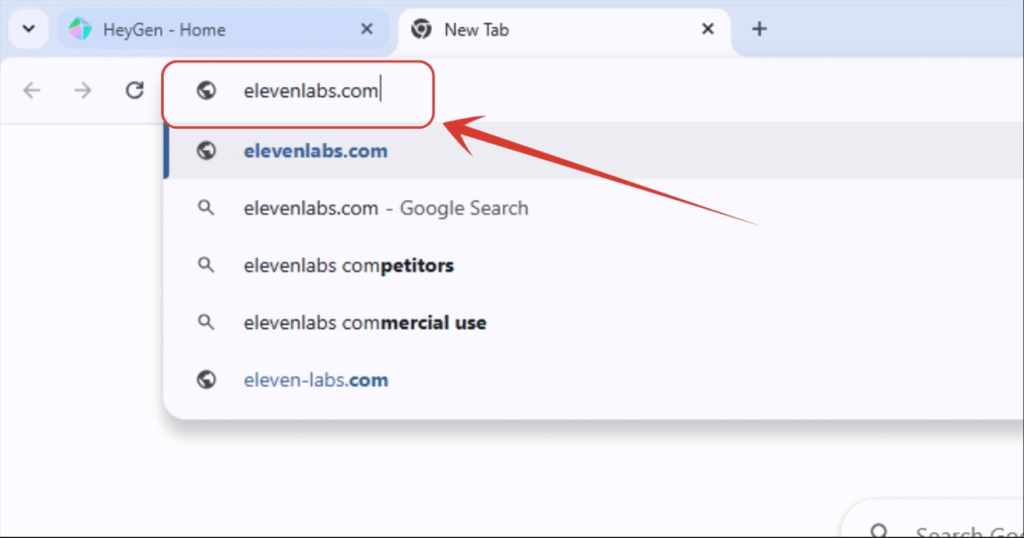
17. If you already have an account then login. But if don’t just click on Sign Up and enter with Google account.
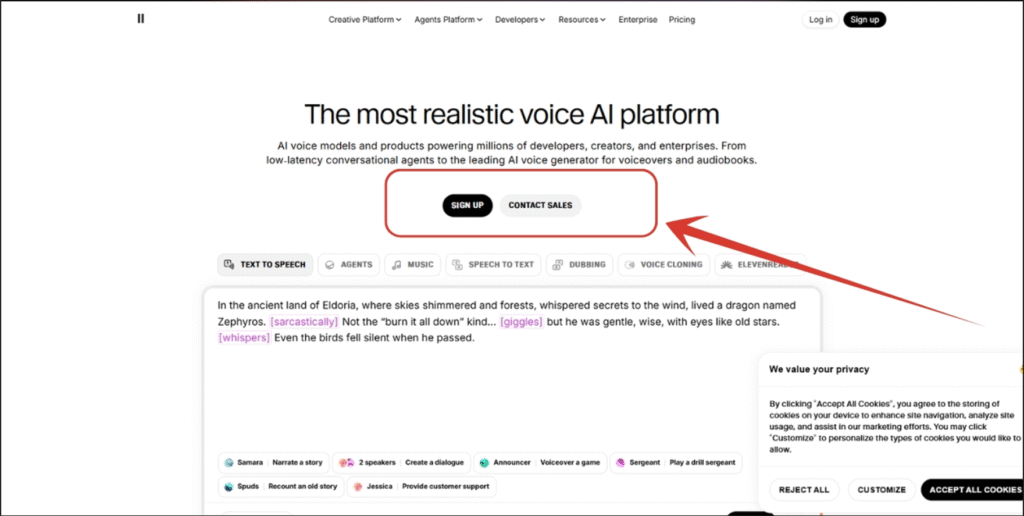
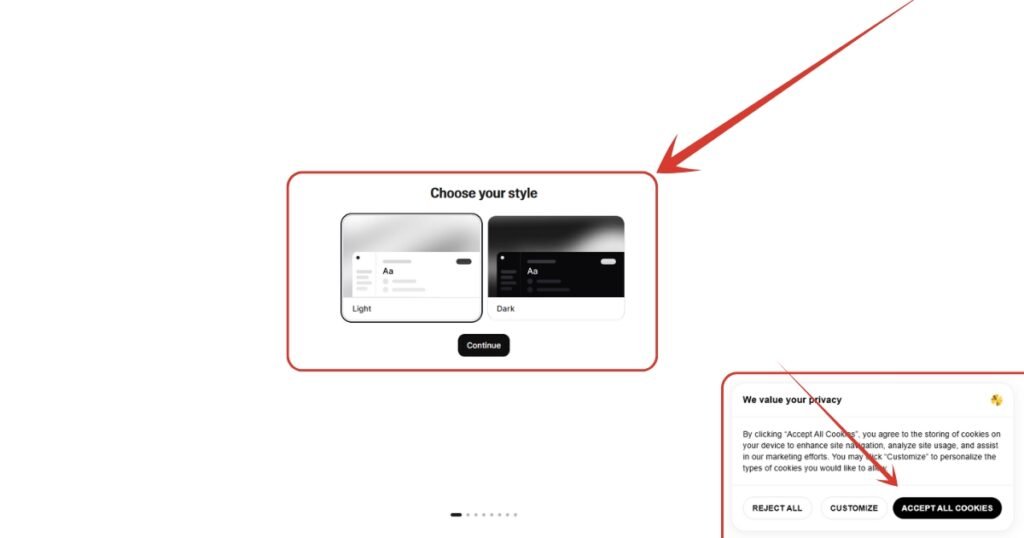
18. This too will ask some configuration questions, like theme selection, cookies setup, your details like name etc. Fill them out and I will meet you on the main dashboard.
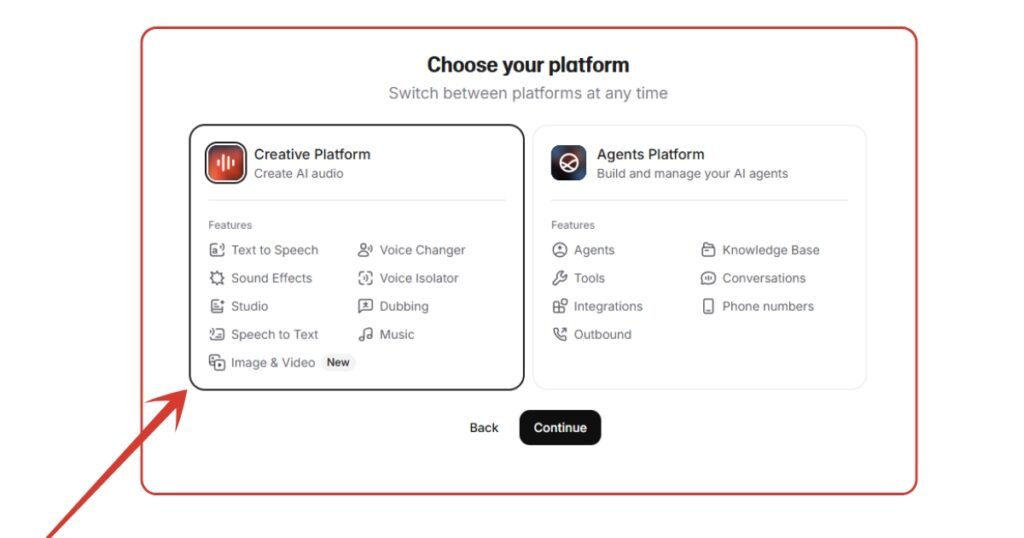
19. While filling out questions, or even if you have clicked the skip button, this window will surely come. Here, select “Creative Platform”. Then again you can click on skip button.
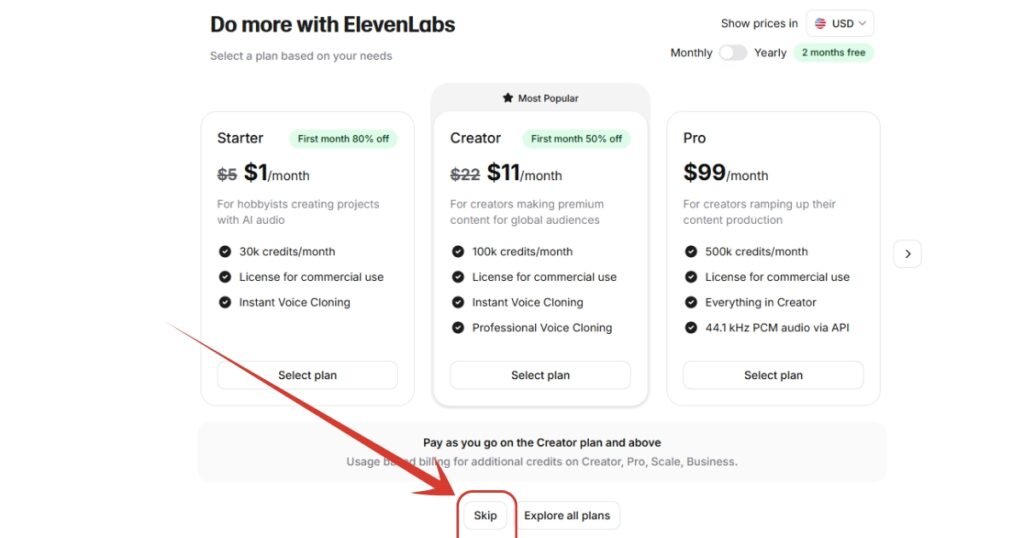
20. Again this non-skippable window arrive to select their plans. Click “Skip” button. Don’t worry, you will get 10,000 credits each month for free which can be used to generate voices.
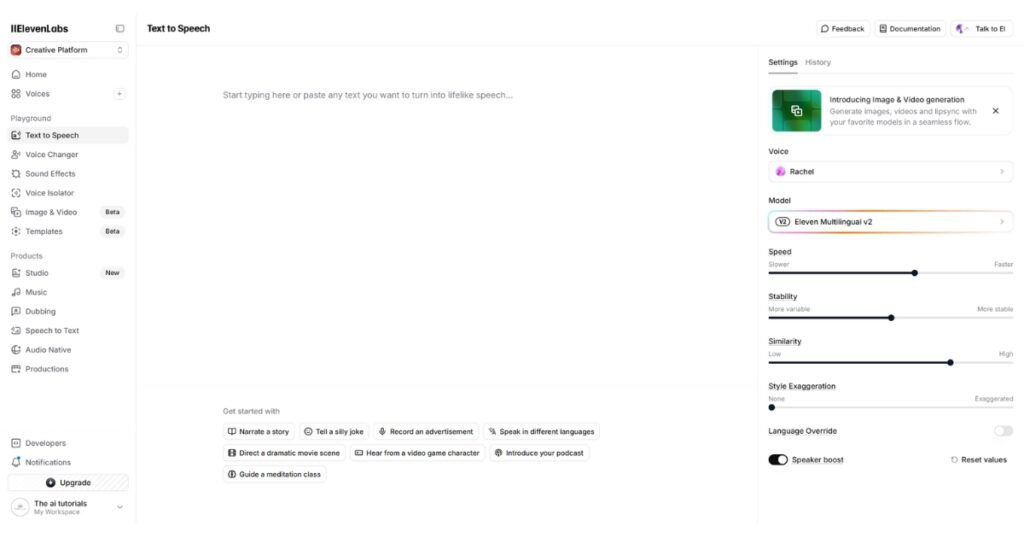
21. And we are done with setting up the Eleven Labs. This is how the dashboard looks like.
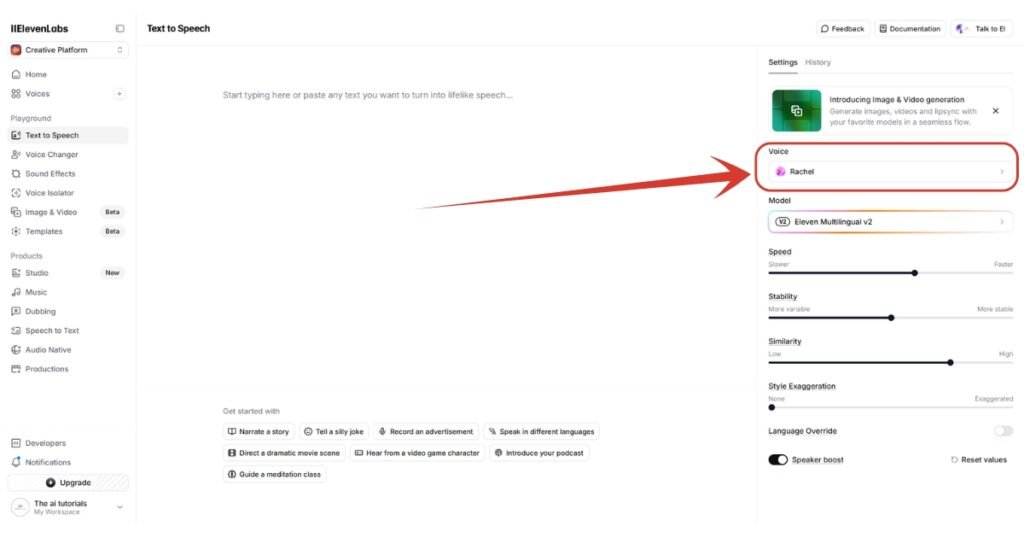
22. Click on “Voice” section on the right panel.
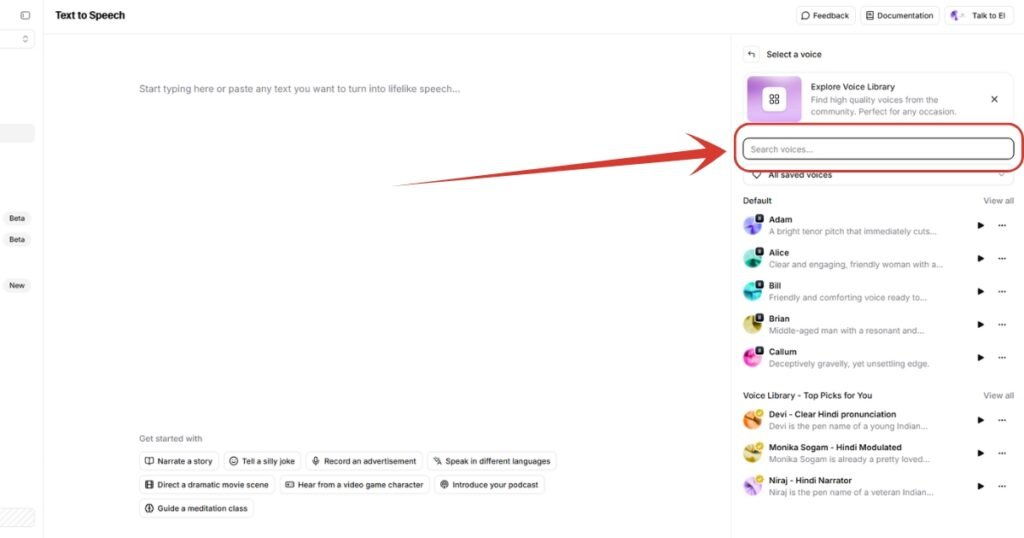
23. Here you have to search for your desired voices.
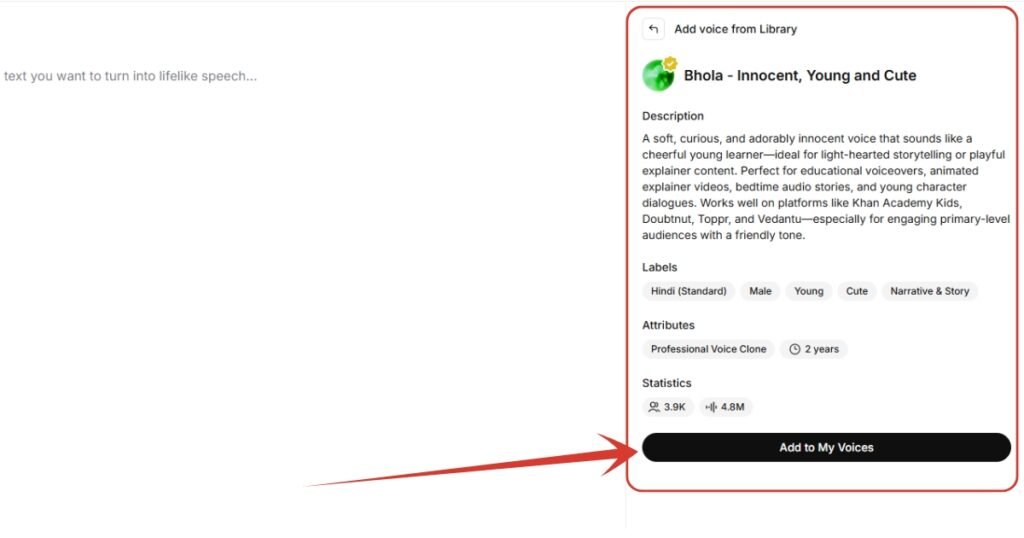
24. After clicking on the voice, this side panel will appear. Just click on “Add to My Voices” button. This will add it to your voice list.
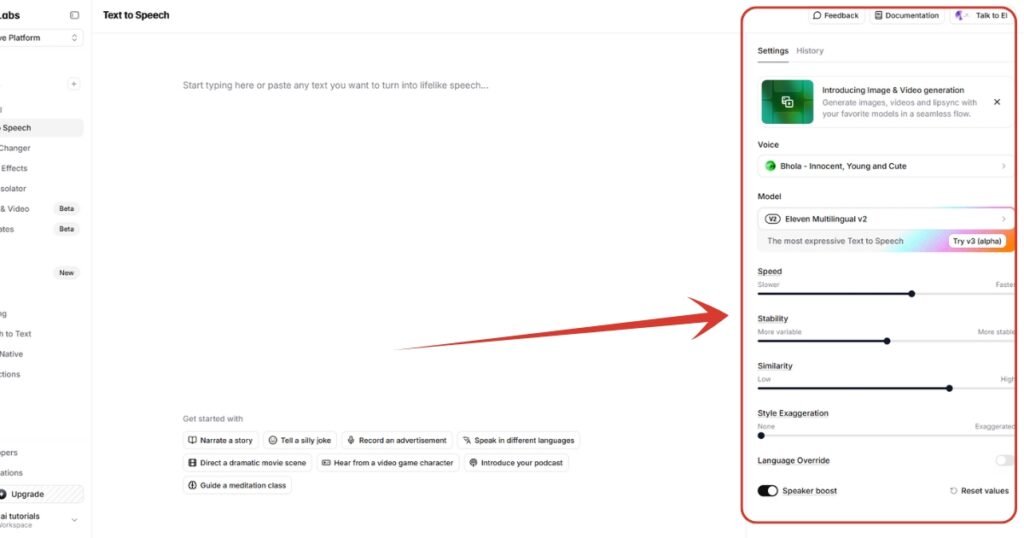
25. And we are also done setting up the voice. Here you can adjust the speed, stability, similarity and other aspects of the voice according to your need.
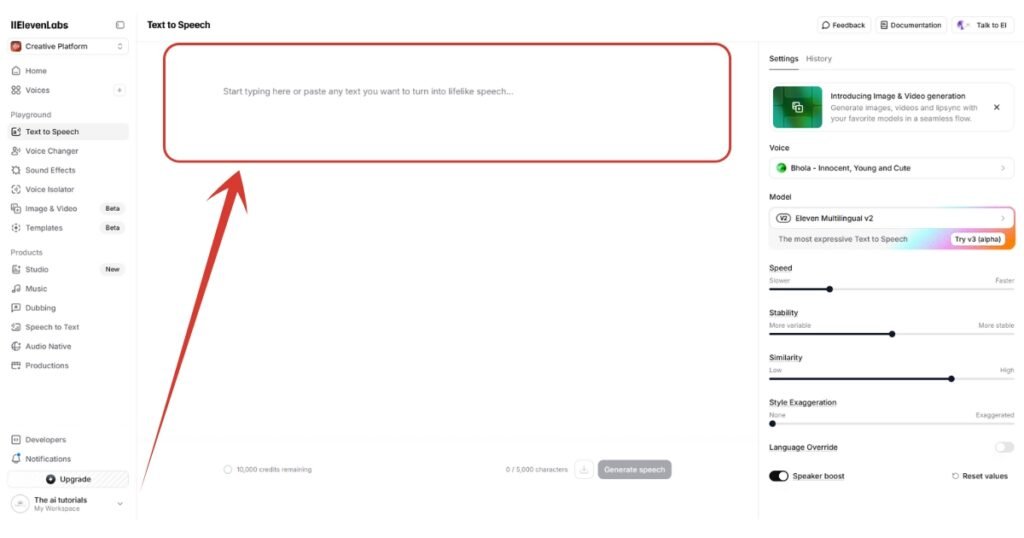
26. Click here to start writing the script for the voice.
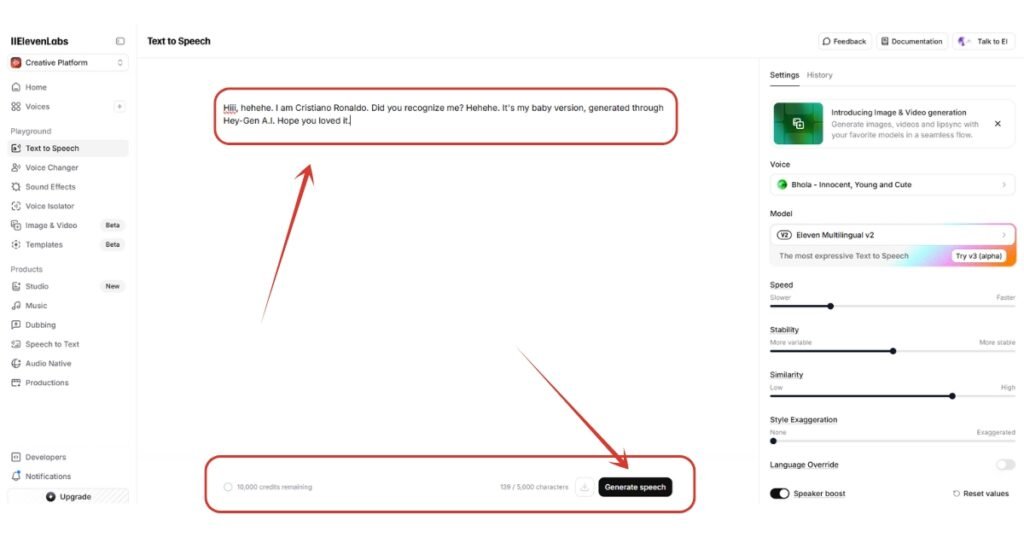
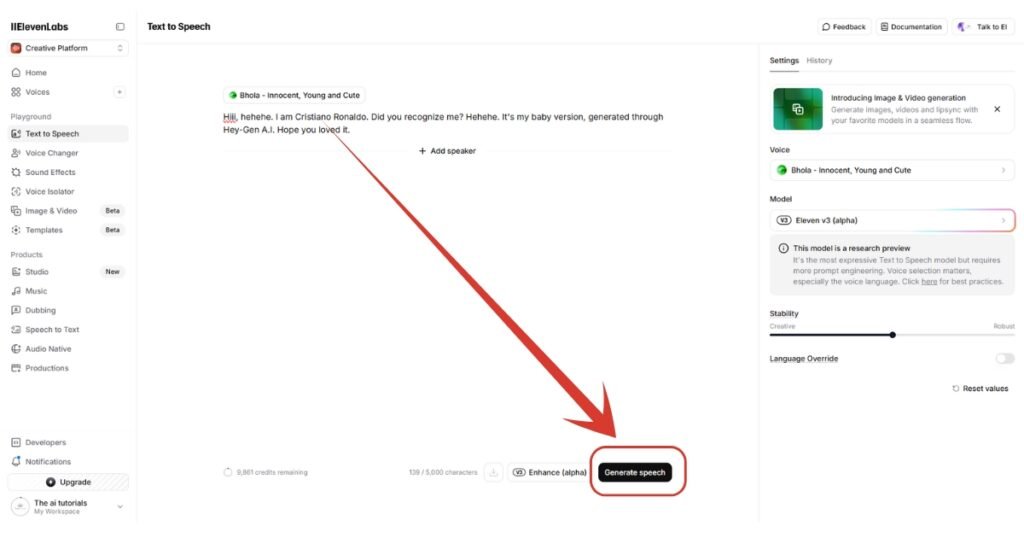
27. I have added my script. Now, I just have to click on “Generate speech” button. As I said earlier, you will get 10,000 credits each month, you can see them down there.
28. Then a list of models will appear in the side panel itself. Just click on “Eleven v2 (alpha)”. Because this is the latest and most realistic model so for launched by Eleven labs. It can create natural laughing and wiggling sounds which actually need.
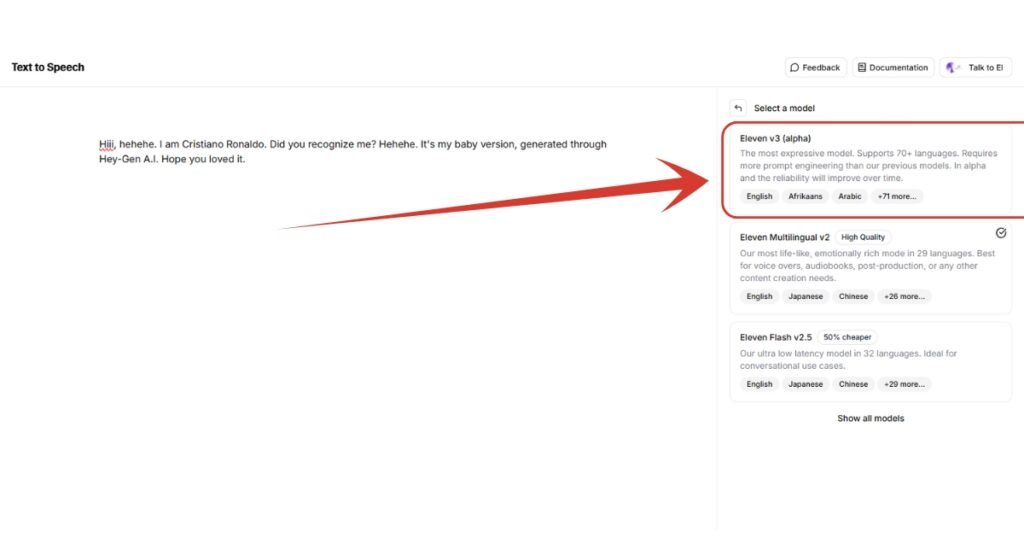
29. A pop-up like this will appear, click “Get started” button.
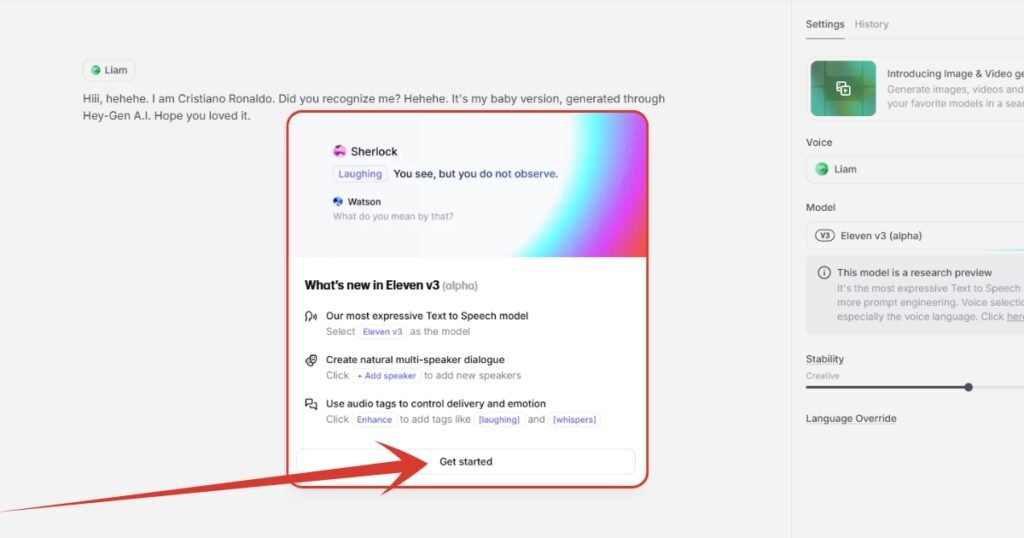
30. All set, but if you notice, our chosen voice is changed. This happens when you change the model. So just click on the voice section again.
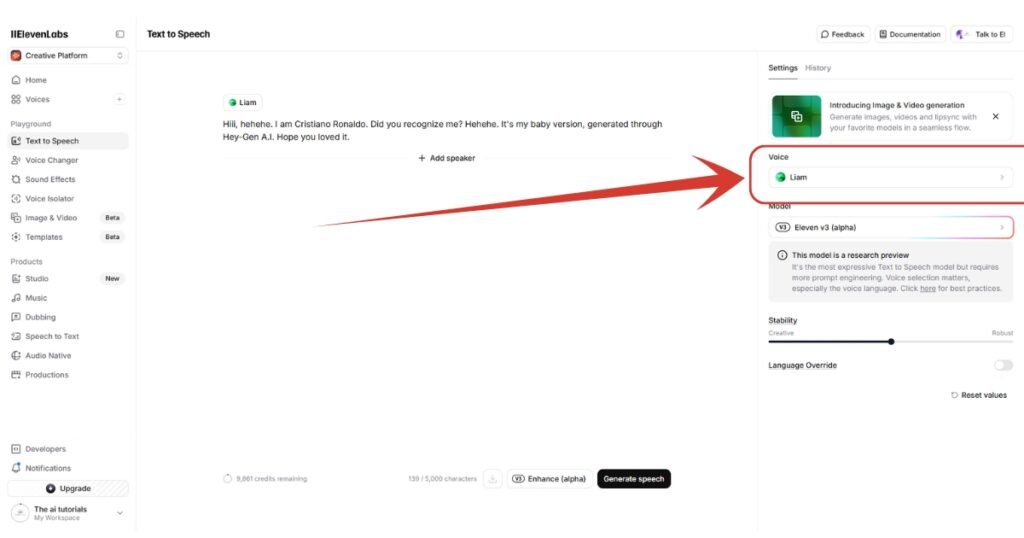
31. Search for “Bhola” again and select it.
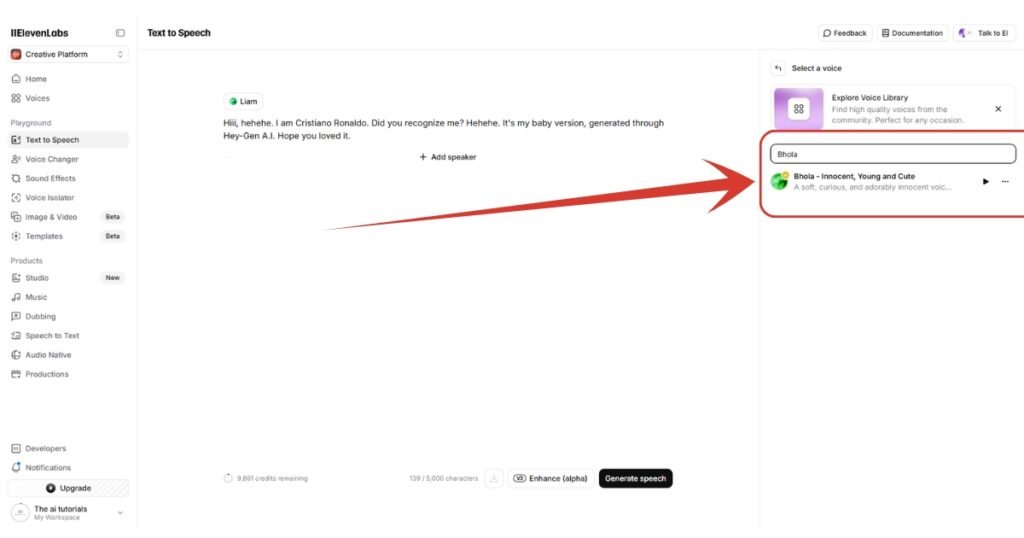
32. We all are set. Now click on “Generate speech” button, and your voice will start generating.
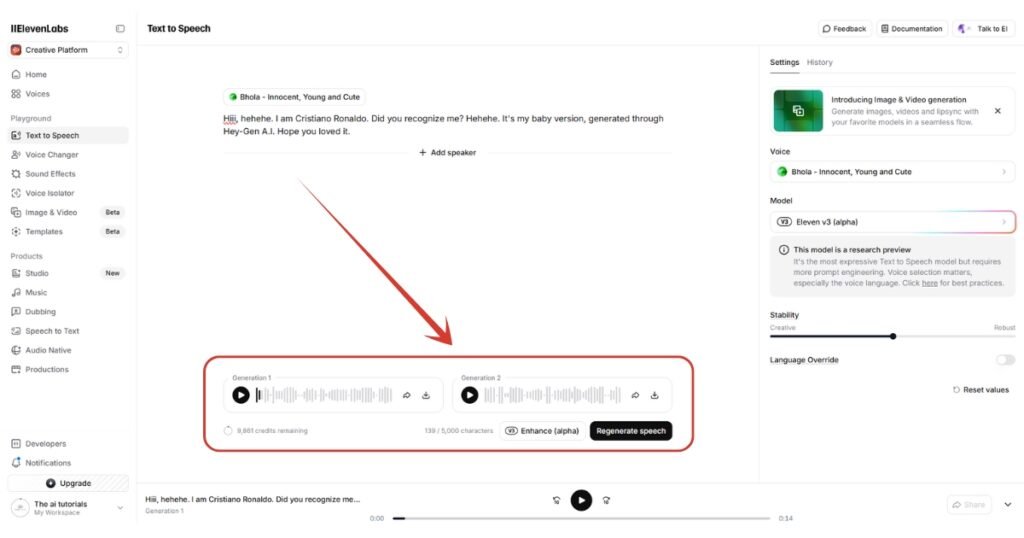
33. You will get two variations of the voice. Listen to them and download whichever you feel good. But make sure it’s less than 15 seconds, as Hey Gen only supports 15 sec of audio file while generating the video.
34. Now come back to the Hey Gen window where we left the uploading part. Clicking here and upload the downloaded audio file.
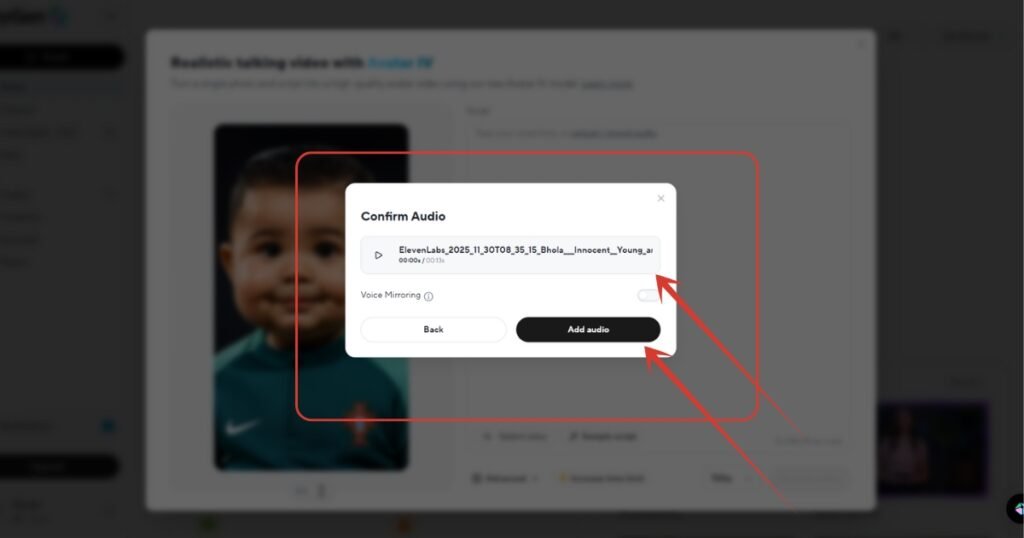
35. As you can see, my uploaded voice is 13 seconds longer, so I faced no issues. But if your generated voice isn’t less than 15 seconds, then you may face issue and have to regenerate and reupload it here. Now, as mine has no issues, I will click “Add audio”
36. Our voice is loaded, now click on “Advanced” button, and add your script.
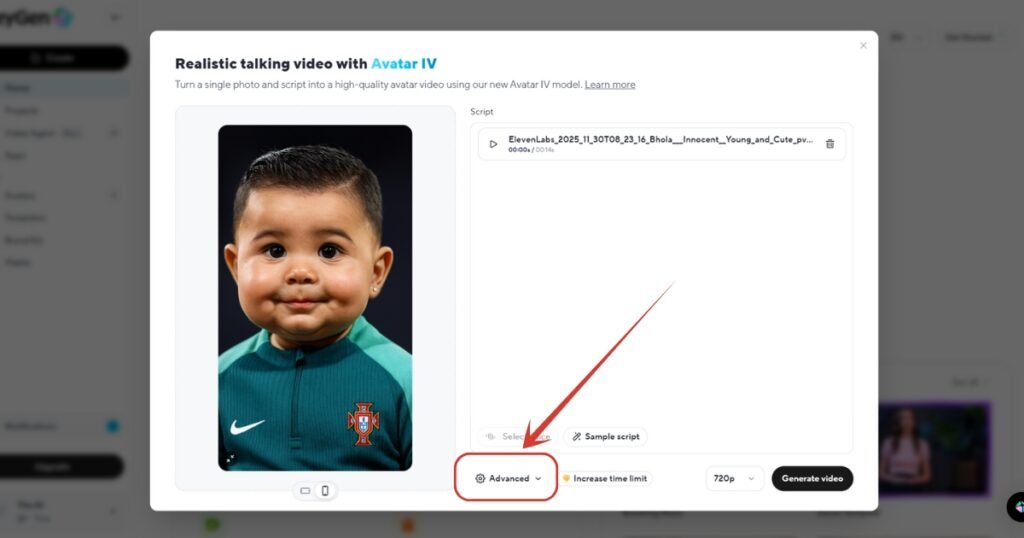
37. I have added a simple script as you can see. You can add your own or just copy and paste mine. And then, click on “Generate video” button, and you are done.
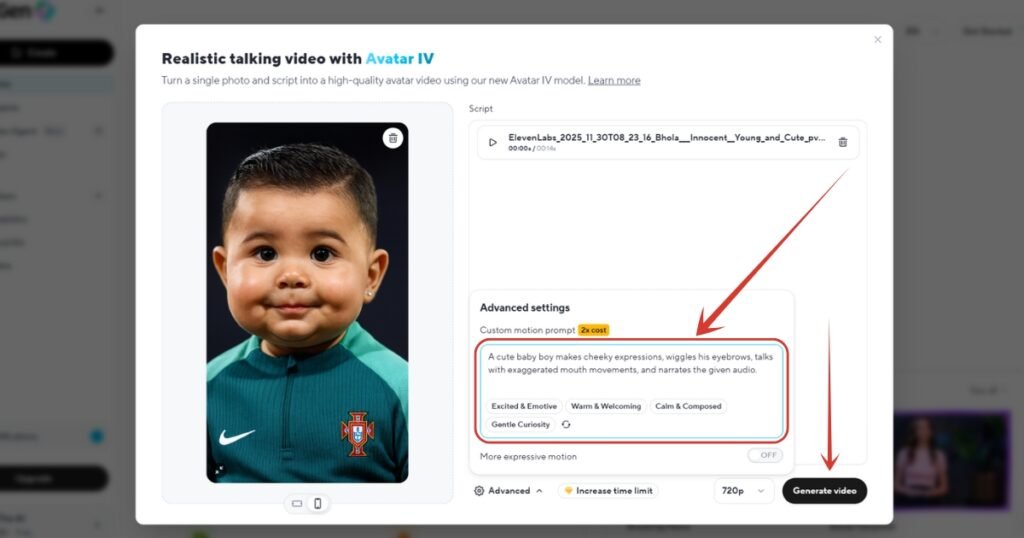
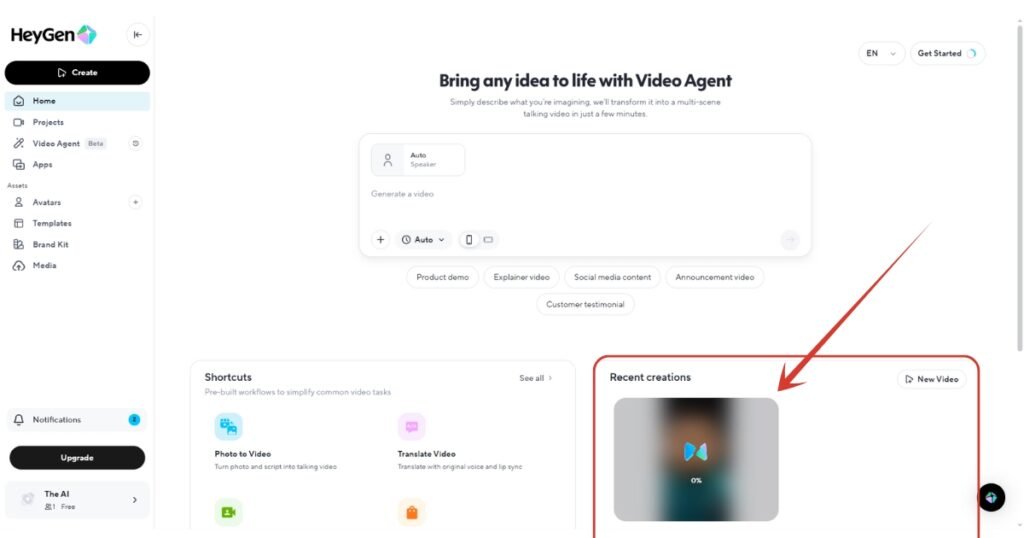
38. Once you click on “Generate video” button, it will throw you on the dashboard, but don’t panic. Here is your generation. Just wait until it completes, and you finally have your AI generated baby video. Download and share on social media.
Also Read:
How to Create Viral AI Baby Fruit Eating Videos? Step by Step TutorialHow to Make Trending Glowing Film Strip Coming Out of Phone Video? Step by Step Tutorial
People Also Ask:
You can make an AI video of a baby talking using HeyGen AI.
Go to HeyGen AI’s official website, then choose “Create an Avatar IV video”, add baby’s image & audio file, click on generate, wait for the video to be processed, and you are done.
Yes, there are many who claims to do so including Hedra AI. But as of now, I found HeyGen AI working perfectly. All you need is a baby’s photo, an audio file, and done.
There isn’t any direct safety issues with such generators or tools, but uploading your baby’s images or any others with or without consent is like blindly trusting their storage and data handling practices.
Conclusion
I have tried my best to explain each and every tiny detail so you don’t face any issues while generating your desired AI baby video.
All you need is a photo of a baby, prefer to use with consent, then an audio, and a basic prompt to provide with to the tool, and you are done.
But be careful as our provided images and data is often used to train their AI models, while it sounds no big harm, but being conscious is always the best thing.




Leave a Reply