

Canva has dropped a new amazing AI powered feature named “Magic BG.” Which is specially designed to generate desired backgrounds within seconds while making your projects.
But as we all know, such actually useful features often comes in pro plans of Canva for which a subscription should be purchased, and the same goes with this feature too. You must have an active Canva’s subscription plan regardless of the duration, then you can easily use this feature.
Despite it is helpful, it’s not something innovative, as the same can be done with a third party AI image generating tool.
The only difference is, here you don’t have to leave your project’s window, the background will be generated within your project.
Okay, enough talk, let’s have a look that how it actually works.
Key Takeaways:
- Canva’s new Magic BG feature uses AI to create unique backgrounds.
- You must have a paid Canva Pro or a Team subscription in order to use this feature as it’s not available in the free version.
- It generates background within your project so you don’t have to download images from other websites.
- All you need to do is just type which kind of image you want, and it gives you four options to choose from instantly.
Step by Step Tutorial:
● How to Get Your ChatGPT Year Recap (Step-by-Step Tutorial)
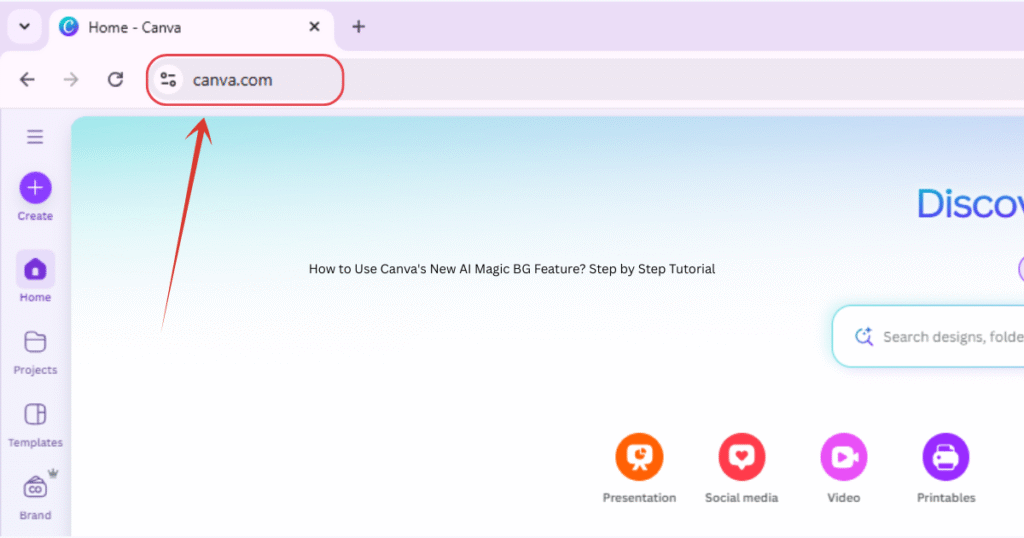
1. Head to Canva first at www.canva.com.
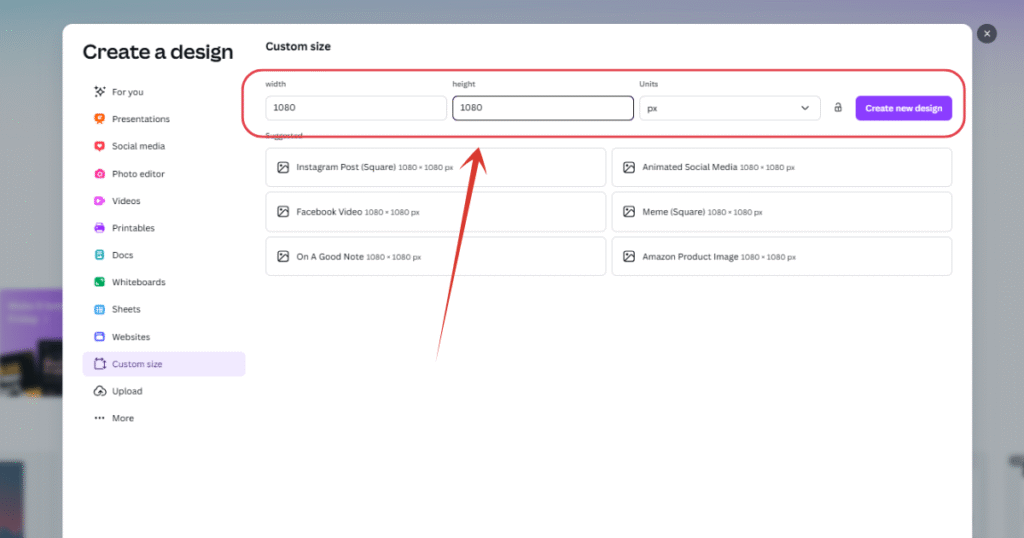
2. Open a blank project according to your desired width and height.
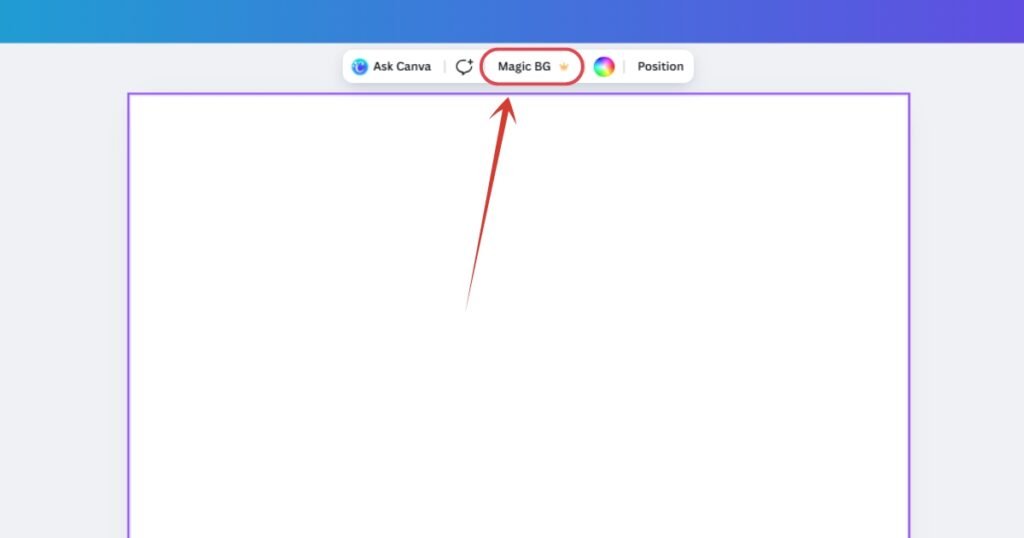
3. Look into the floating tool bar, here it is, click on “Magic BG.”
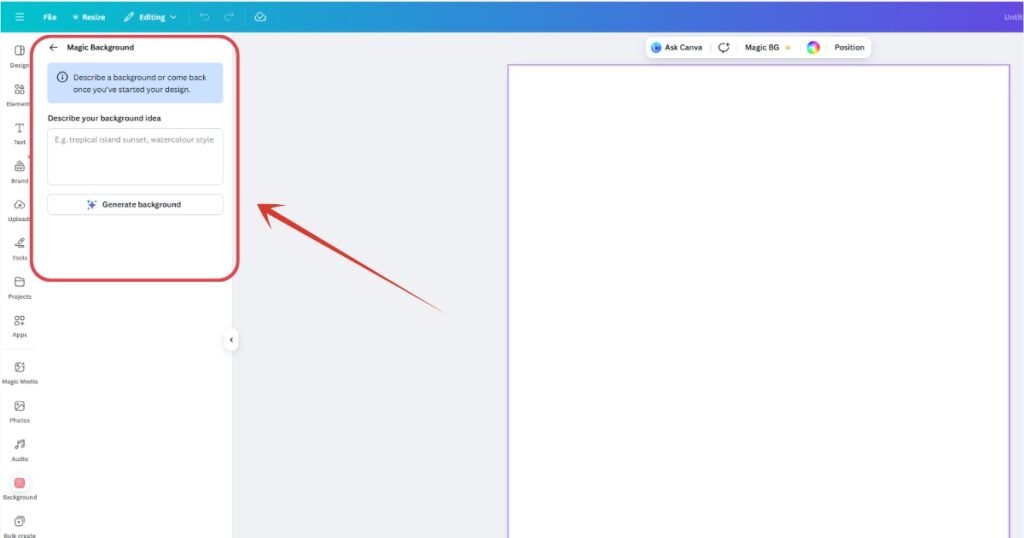
4. After clicking on it, a slide section will take place on the left which will look something like above.
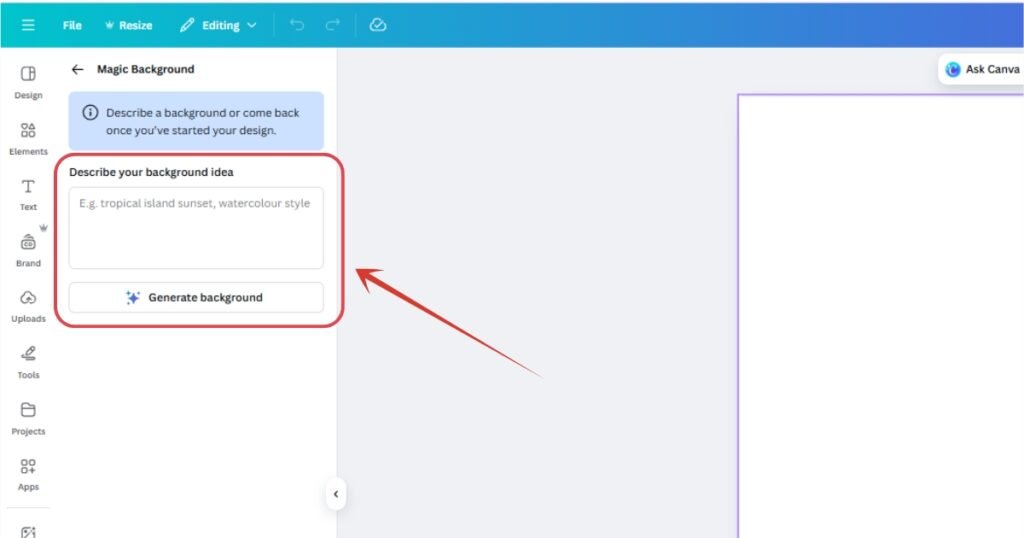
5. Here you have to enter your desired image description to add as background in your project.
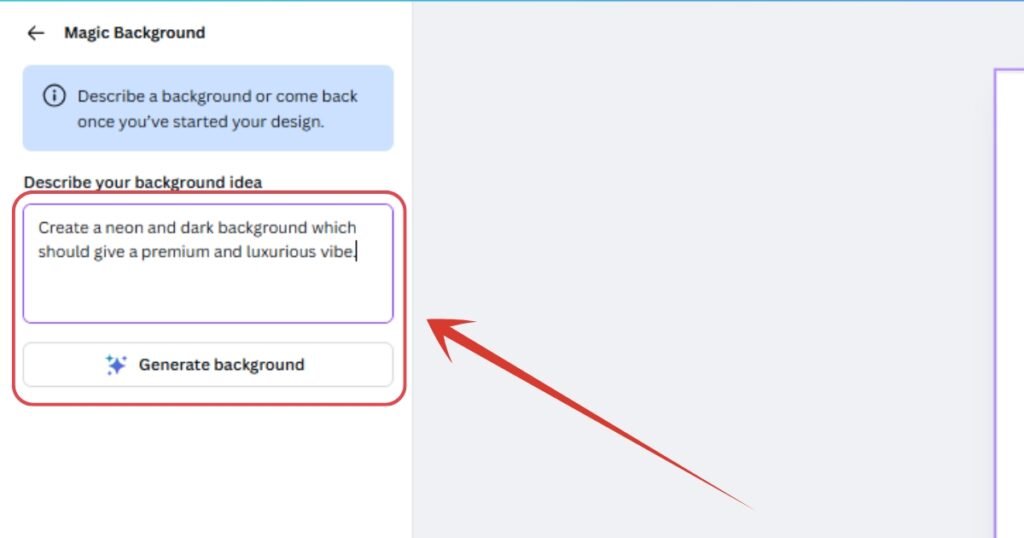
6. For instance, I will enter this image description and hit the “Generate background” button.
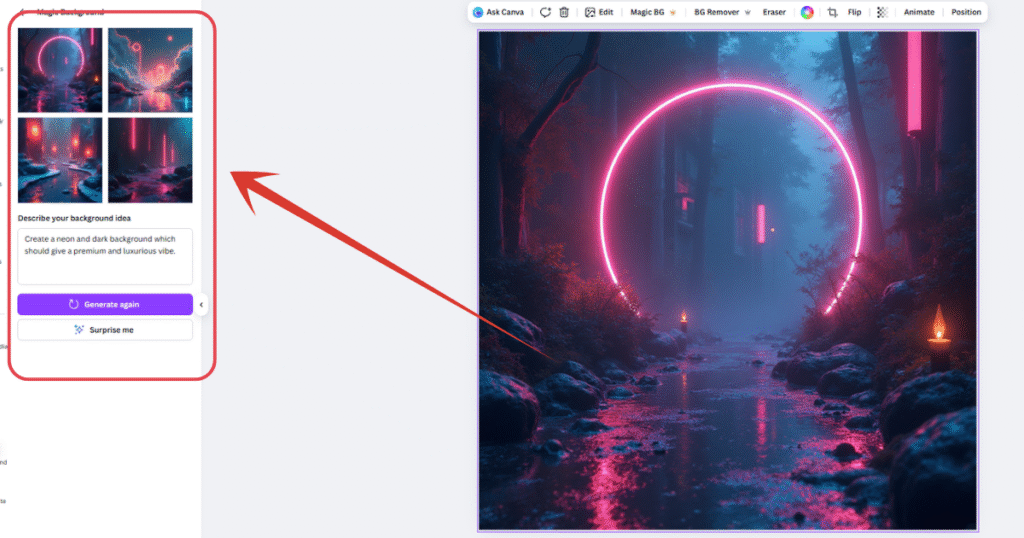
7. Once the processing is complete, you will get total of 4 variations of asked image. You can either use any of them or just click on “Generate again” button to recreate the image if none of them suits your imagination, and finally set it as your project’s background.
Also Read:
How to Use Nano Banana Pro for Free? Step by Step Tutorial
People Also Ask:
To use the background generator, open your project and click on the “Magic BG” icon in the floating toolbar. Type a description of the background you want, click “Generate,” and Canva will create unique options for you to choose from.
Magic Resize allows you to change the size of your design instantly with just one click. For example, you can turn an Instagram post into a YouTube thumbnail without having to redesign everything from scratch.
You usually don’t need to turn on a switch to enable it. You can find Magic Design by typing a query into the search bar on the Canva home page, or by looking under the “Design” tab inside the editor to let AI build a layout for you.
You can add a background in two ways: click on your blank canvas and select a color from the color tile, or drag and drop any photo from your “Uploads” or “Elements” tab onto the canvas until it snaps into place as the background.
Conclusion
Canva’s “Magic BG” can be a game changer for designers who want to work fast.
Although it requires a Pro subscription, the ability to create the perfect background without leaving your project window saves a lot of effort.
If you have the budget for Canva Pro, this tool makes creating professional social media posts or presentations much easier and faster.




Leave a Reply